

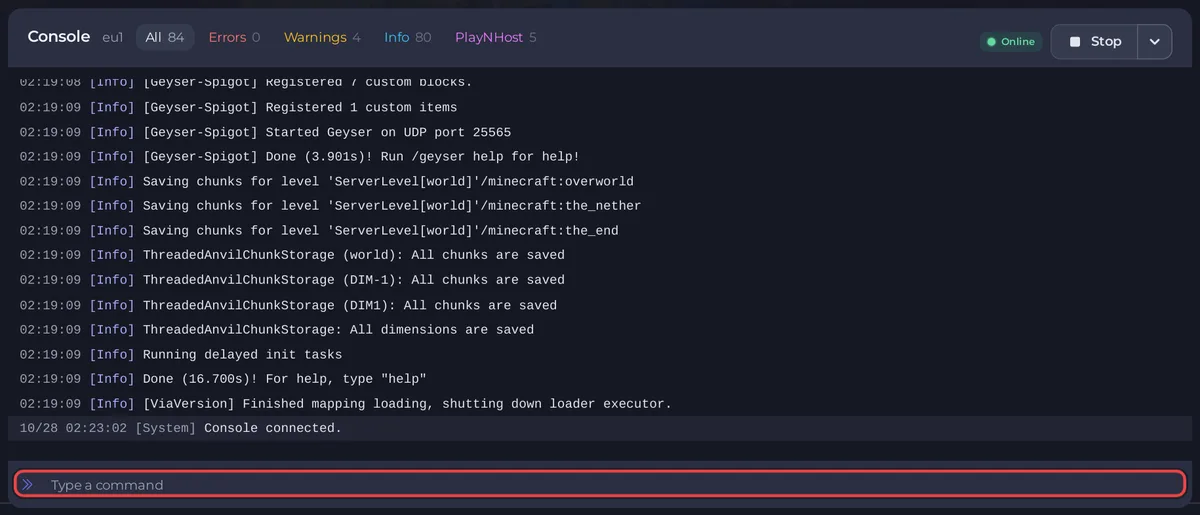
The Console tab shows your Minecraft server's live output and lets you type server commands. Click the box that says Type a command, type the command without a slash and press Enter. The Console runs commands with full rights, so you do not need to be an operator.
Send a command
- Open your server in the panel and click the Console tab. The server must be running.
- Click the box that says Type a command at the bottom.
- Type the command without a slash, for example
listorsay Hello everyone, and press Enter. - The server's answer appears in the output.
Press the up arrow in the box to bring back earlier commands, and the down arrow to go forward again.
You need the Use the console permission to type commands. Without it you can still read the output.
Useful commands are in Minecraft commands for server owners.
Read the output
- Filters above the output: All, Errors, Warnings and Info, each with a count. Players (joins and leaves), Chat, Commands and PlayNHost (the panel's own lines) appear once there is something to show.
- Search: the search button opens Search output... to find a word.
- Expand the console makes it bigger, and Shrink the console brings it back.
- Older output can appear above a divider that says from what time the output is live.
Share or download the log
Open the menu with the three dots (More console actions):
- Share log opens Share this log. Choose Link expires after (An hour, A day or A week), keep Hide IP addresses on to replace player addresses with
xxx.xxx.xxx.xxx, and click Create the link. The link is copied: paste it into a ticket. Anyone with the link can read it, so check the output for plugin keys or passwords first. - Download log saves the output to your computer.
- Clear Log empties the Console view. It cannot be undone.
Start, stop and restart
Start, Stop and Restart are at the top of the page. Stop sends Minecraft's own stop command. Kill ends it at once, and the panel warns it can lose data: use it only when the server does not stop by itself. See How to start, stop, restart and force-stop your server.
Good to know
- Commands typed here act at once but some only last until the next restart. For a setting you want every time, use Settings: Minecraft server properties explained.
- To send a command on a timer, use Quick Tasks: How to use Quick Tasks on your Minecraft server.
- When the server stops on an error, Why your server stopped explains it: How to see why your Minecraft server stopped. The full log files are covered in How to read your Minecraft server log and crash reports.
- The Console for every game: How to use the console and run commands.


