

Quick Tasks in the left menu holds one-click actions written for your Minecraft server: Save World, Announce to Players, Reload Whitelist, Restart with Warning and World Reset, plus start, stop, restart, backup and any console command. Run one now, pin it to Overview, or put it on a schedule.
The Minecraft tasks
Open Quick Tasks, then under All tasks click Default tasks:
| Task | What it does |
|---|---|
| Save World | Writes the world to disk now, without waiting for the next autosave. It sends save-all. |
| Announce to Players | Shows a message to everyone on the server. It sends say and your Message. |
| Reload Whitelist | Re-reads whitelist.json so names you added or removed take effect now, without restarting the server. |
| Restart with Warning | Warns players in chat one minute and then ten seconds before, then restarts the server. |
| World Reset | Deletes the world this server loads, with its Nether and End, so the next start generates a fresh one. Plugins, mods, whitelist, ops and server.properties are all kept. |
| Send Command | Sends any console command you type, for example time set day. |
| Send Restart, Send Stop, Send Start | Restart, stop or start the server, with no warning. |
| Backup Server | Takes a full backup of your server files. |
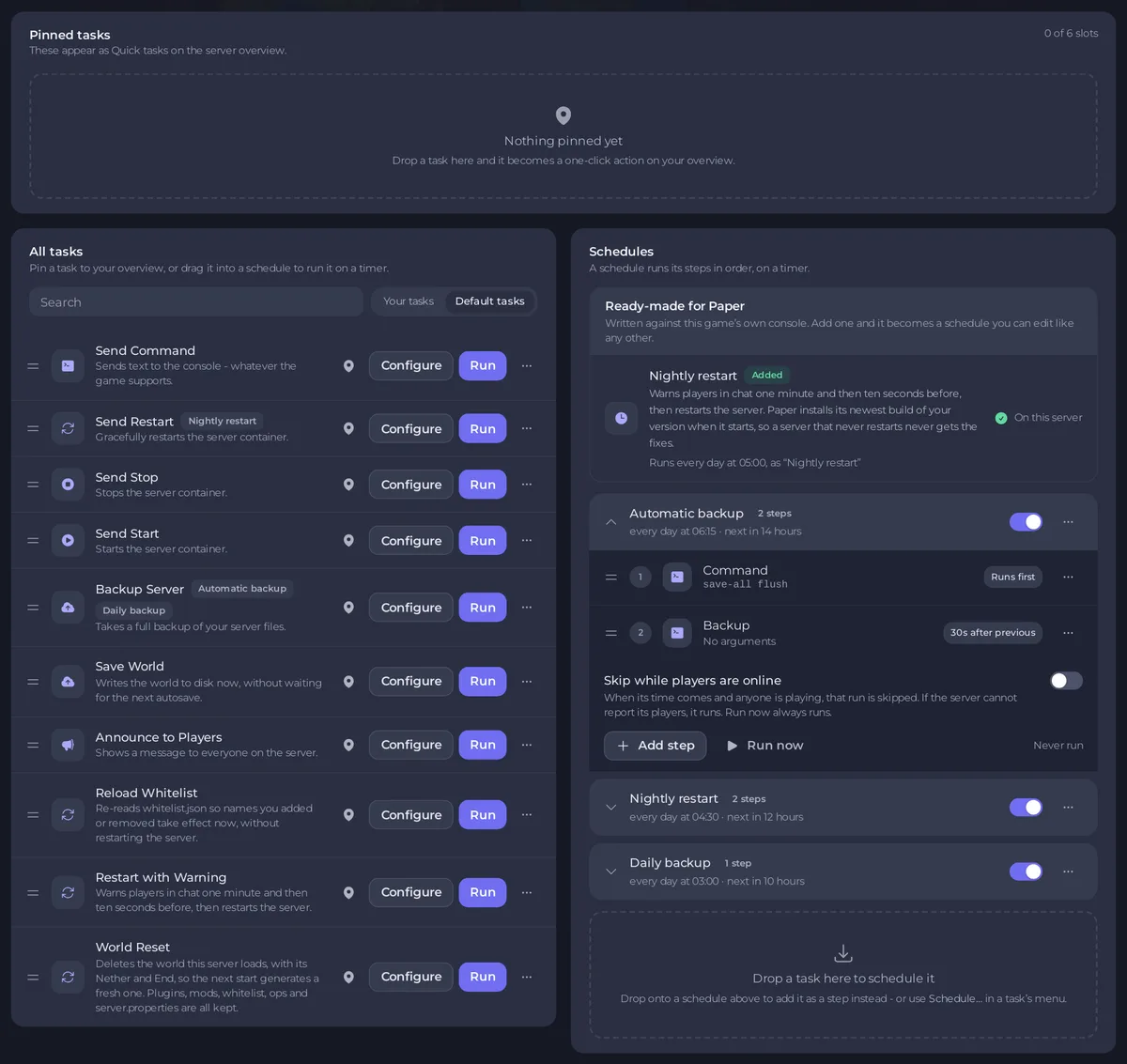
The Minecraft tasks are there on Java servers: Paper, Purpur, Spigot, Folia, Vanilla, Fabric, Quilt, Forge, NeoForge and modpack servers. A proxy and a Bedrock server have the general ones only.
Run a task now
Click Run on its row. Then:
- A task that needs a value, such as Announce to Players, opens Configure task, where you type it. Save task saves your version under Your tasks and does not run it. Click Your tasks, then Run on your saved version.
- World Reset opens Run World Reset? first, with Back up the server first. See How to reset your Minecraft world.
- Restart with Warning does not run while the server is stopped: there is nobody to warn, and a restart would start it.
The Console shows what each task sends and the server's answer.
Pin a task to Overview
Click the pin on a task's row, or choose Pin to overview in its menu. It then shows as a one-click button under Pinned tasks here and under Quick tasks on your server's Overview. The overview has room for a few: unpin one to add another.
Put a task on a schedule
- Open the task's menu (the three dots on its row) and choose Schedule….
- Give the schedule a Name and fill in what the task needs, then click Next step.
- Choose Once and a date and time, or Repeats with How often (Every hour, Every day, Every week, Every month or Advanced (cron)) and the time under At. The window says when it runs, and what time that is where you are.
- Keep Enabled on and click Schedule.
The schedule appears under Schedules. Open it to see its steps. Its switch turns it off or on, and its menu has Run now and Delete schedule. The time of a schedule cannot be changed once it is made: to run it at another time, make a new schedule and delete or switch off the old one.
A schedule made on this page runs only while the server is on. If the server is stopped when its time comes, that run is skipped, so a schedule cannot start a stopped server.
You can also drag a task from the list onto a schedule to add it as a step.
Ready-made for Minecraft
Above your schedules, a box Ready-made for your server type offers schedules written for Minecraft:
- Automatic backup: every night, saves the world and backs up the server. New servers already have it when the plan includes backups, so it shows On this server. See How to set up automatic backups on your Minecraft server.
- Nightly restart: warns players one minute and ten seconds before, then restarts, every day at 05:00 Central European Time (the panel's time zone), only while the server is running. It shows Arrives off: click Add, then switch it on under Schedules. See How to restart your Minecraft server on a schedule.
Skip a run while people play
Open a schedule and switch on Skip while players are online. Under When players are online, choose Skip that run, or a wait such as Wait up to 2 hours for the server to empty. The panel then looks again every 5 minutes, runs as soon as nobody is on, and runs anyway when the wait is over. If the server cannot report its players, the schedule runs. Run now always runs.
Good to know
- Who can use the page: your role needs the schedule permissions. See How to let a friend help run your Minecraft server.
- To message everyone once, see How to send a message to every player on your Minecraft server.
- The same page for every game: How to schedule tasks and automatic backups.


