

When your plan includes backups, a new Minecraft server comes with an Automatic backup that runs every night. It writes the world to disk, then backs up the whole server. Once your backup slots are full, the oldest backup that is not locked makes room for the newest, so lock the ones you want to keep. You find it on Backups, under Scheduled backups, where you can also change its time.
See your automatic backup
- Open your server in the panel and click Backups in the left menu.
- Find the card Scheduled backups,
Rules that create backups for you. The Automatic backup row says when it runs next:Nextand a date and time.
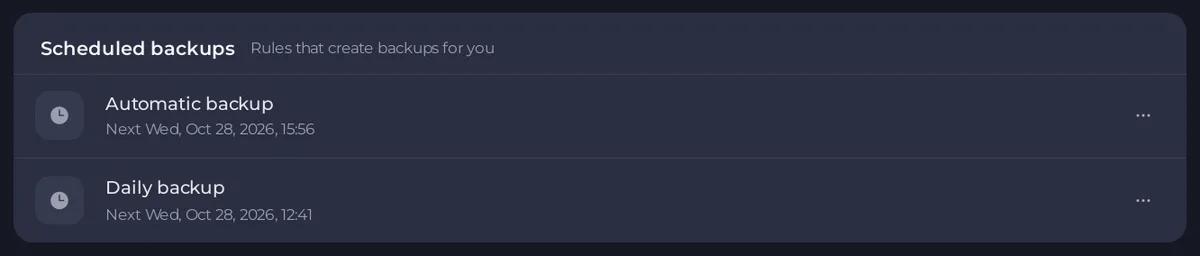
It runs whether the server is on or off. If players are on, the backup does not stop the game: the panel pauses the game's autosave, saves the world, copies it, and switches autosave back on.
Change its time
- On Backups, open the menu of Automatic backup (the three dots at the end of its row) and choose Edit.
- In Edit scheduled backup, change the Time.
- Click Save.
Pick an hour when few players are on. The Next time and the Time field use the panel's own time zone, Central European Time, which may differ from yours. Schedules on Quick Tasks cannot have their time changed; backup schedules are changed here.
If it is missing
If the card says Automatic backups are not switched on, it also says what the schedule would do and when. Click Turn on automatic backups.
If the card says No scheduled backups with no button, your plan has no backup slots, or your role cannot create backups. See the Backups page for your slots, or ask the server owner.
Add your own repeating backups
- Under Create backup, set When to Repeating.
- Choose Every, the number, and the Unit: Hours, Days or Weeks.
- Set Backups to retain: how many scheduled backups to keep. The count covers the backups of every schedule on the server, the nightly Automatic backup included, and the oldest unlocked ones beyond it are deleted as new ones are made.
- Click Schedule backup.
For a one-off backup at a later time, choose At a time and pick the Date and Time.
Keep the ones that matter
- Lock a backup in its menu to keep it out of the rotation. When the slots are full, a scheduled backup removes the oldest unlocked backup, also one you took yourself.
- Download a copy to your computer now and then.
- Locked backups use slots too. Unlock or delete old ones so the nightly backup has room.
Good to know
- Each backup line says
World as ofand the time its world was saved: How to back up, restore and reset your Minecraft world. - The Automatic backup is also a schedule on Quick Tasks, with its two steps. Change its time on Backups.
- Backups for every game: How to schedule tasks and automatic backups.


