

Invite your friend from Team & Roles in the left menu and give them a role with the permissions for what they should do. Playing on the server only needs the address. Helping to run it in the panel needs an invite and a role.
Invite someone
- Open your server in the panel and click Team & Roles in the left menu.
- Click Invite someone (shown while nobody else has access yet). On a computer, Invite people at the right end of the tab row opens the same window at any time.
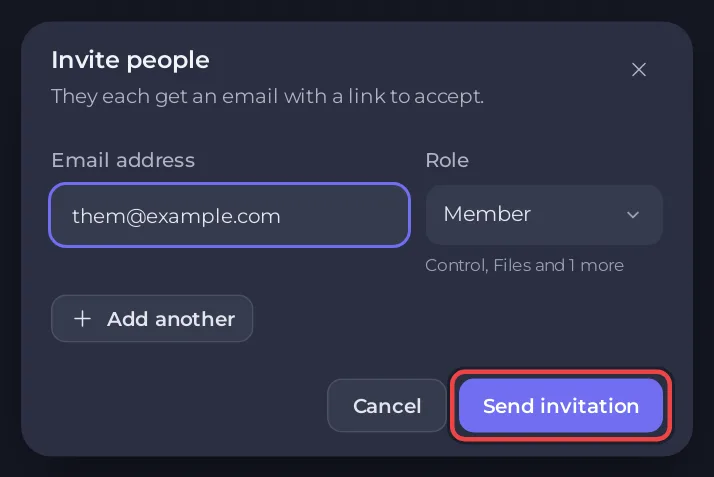
- In the Invite people window, type their Email address and pick a Role: Moderator, Member or a role you made yourself on the Roles tab. Add another invites more people at once.
- Click Send invitation. They get an email with a link to accept.
Once they have accepted, open the menu on their row and choose Change what they can do to tick or untick single permissions. For a set of permissions you want to reuse, click Create role on the Roles tab. The roles, custom roles and two-factor are explained in How to invite friends and give them access. You can only give permissions your own account holds.
Which permission a Minecraft task needs
Permissions are grouped as Control, Files, Backups, Team, Settings, Setups, Databases, Schedules and Activity. For a Minecraft server:
- Console and commands: Control, Use the console.
- Start, stop, restart: Control, Start, Stop, Restart.
- Kick and Ban on the Active players card: Use the console.
- The Players page (whitelist, operators, bans): Use the console and Files, Read contents. Changing the lists while the server is stopped also needs Create and upload.
- Invite links: Use the console and Create and upload.
- Can my friends join? card: Read contents.
- Settings page: any Settings startup permission, such as View startup, opens it. Reading Server Properties (Java) and Game Rules needs Read contents. Saving them needs Edit and rename.
- Server icon: Edit and rename and Create and upload to set it, Files, Delete to remove it.
- Remote console (RCON) switch: Edit and rename and Add ports.
- Edit slots (player limit): Rename server.
- Custom Java flags under Startup Parameters: Change startup.
- Java runtime under Launch Details: Change the server image.
- Installing, updating or removing plugins and mods on the Modding tab: Files permissions such as Create and upload and Delete.
- Backups: the Backups permissions, for example Create and Restore.
- Quick Tasks and schedules: the Schedules permissions.
- Ports & Network and crossplay: View ports, and Add ports where crossplay or a feature needs a port of its own. Turning on crossplay also needs Create and upload.
- Databases: the Databases permissions. See passwords gives full access to the data.
- Edit Server Type: only the server owner can change the server type or version.
If a button is missing for your friend, their role does not have the permission for it. Some permissions, such as Delete in Files, Restore in Backups and Reinstall, are marked Risky: give them only to people you trust.
Make someone an operator in the game
A panel role is not the same as being an operator in Minecraft. To give a friend operator commands in the game, use the Operators tab on the Players page: How to op yourself and manage permissions on your Minecraft server.
Good to know
- Turn on Require two-factor for everyone on Team & Roles so nobody can open your server without two-factor authentication.
- To remove access, open the person's menu on Team & Roles and choose Remove from server.
- To see who did what, open Activity: How to see what happened on your server.


