

To start over with a new world, delete the world your server loads. Minecraft then generates a fresh one at the next start, and your plugins, mods, server.properties, whitelist, operators and bans stay. Use Delete world on the Worlds tab, or World Reset on Quick Tasks, which can take a backup first.
Everything in the world is lost: every build, chest, player inventory, the Nether and the End, advancements and statistics. Take a backup first if you may want it back.
Before you reset
- Decide the settings of the new world. The seed, the world type and the structures are used only when a world is made, so set them now under Settings, Server Properties (Java). See How to use a seed and world type on your Minecraft server.
- Keep a copy of the old world if you may want it: a backup, or Download the world on the Worlds tab. See How to download your Minecraft world.
- Tell your players.
Reset with a backup first (Quick Tasks)
- Open your server in the panel and click Quick Tasks in the left menu.
- Under All tasks, open Default tasks and find World Reset. It says
Deletes the world this server loads, with its Nether and End, so the next start generates a fresh one. Plugins, mods, whitelist, ops and server.properties are all kept. - Click Run. A window asks Run World Reset? and says
This deletes files from your server. Only a backup can bring them back. - Leave Back up the server first ticked. The reset starts only once the backup has finished, and the backup uses one of your backup slots. It is named Before World Reset.
- Click Run World Reset.
The panel stops the server, deletes the world, and starts the server again if it was running. The Console shows each step, and the new world is generated as the server starts.
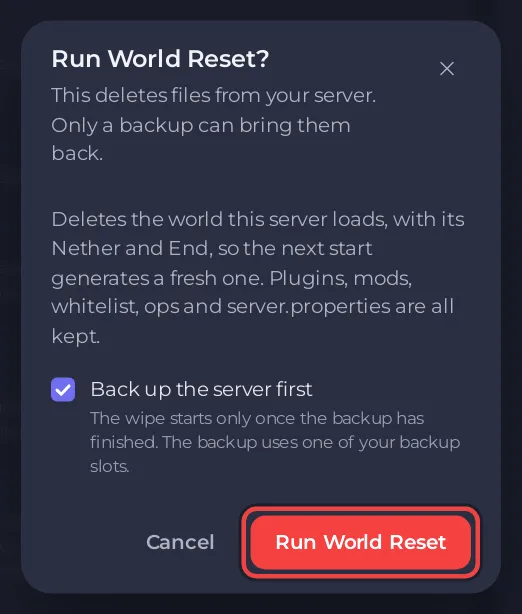
If your plan has no backup slots, the window says Your plan has no backup slots, so this runs without a backup.
Reset from the Worlds tab
- Click the Modding tab, then Worlds, then Your worlds.
- Open the menu of the world with the Active badge and choose Delete world.
- The window says
This is the world your server loads. If the server is running, it stops while the world is deleted and starts again with a new one.and lists the Nether and End folders deleted with it. - Click Delete world.
No backup is taken this way, so make one first on Backups.
Reset on a schedule
Some servers start a new world every month or every season. Open the menu of World Reset on Quick Tasks, choose Schedule…, and pick when it repeats. The schedule runs without asking, so put a Backup Server schedule a few minutes before it. Schedules made on Quick Tasks run only while the server is on: a run that comes while it is stopped is skipped. See How to use Quick Tasks on your Minecraft server.
Keep the old world beside the new one
Instead of deleting, start a second world and keep the first on the server:
- Set World name in Settings, Server Properties (Java) to a name no folder has yet, then restart. The server makes a new world in that folder and the old one stays in Your worlds. Switch back any time: How to switch to another world on your Minecraft server.
- Or keep the whole setup as an instance: How to use instances on your Minecraft server.
Good to know
- Data that plugins keep about the old world, such as homes, warps or claims, still points at places in the old world. Clear it in each plugin if needed.
- To reset only the Nether or the End, see How to reset the Nether or the End on your Minecraft server.
- To undo a reset, restore the backup taken before it: How to back up, restore and reset your Minecraft world.


