

A PlayNHost Core Keeper server keeps each world in its own numbered slot, and World Index on Settings, Game Settings picks which slot the server loads. Change the number and restart to switch worlds. Every other world stays on the server, untouched.
How do I switch to another world?
- Open your server in the panel and click the Settings tab.
- Click Game Settings.
- In World Index, type the slot number, for example
1. - Click outside the field or press Enter to save it.
- Click Restart now in the message that appears, or restart the server yourself.
- Wait for Online. An empty slot gets a new world first, which takes 3 to 5 minutes.
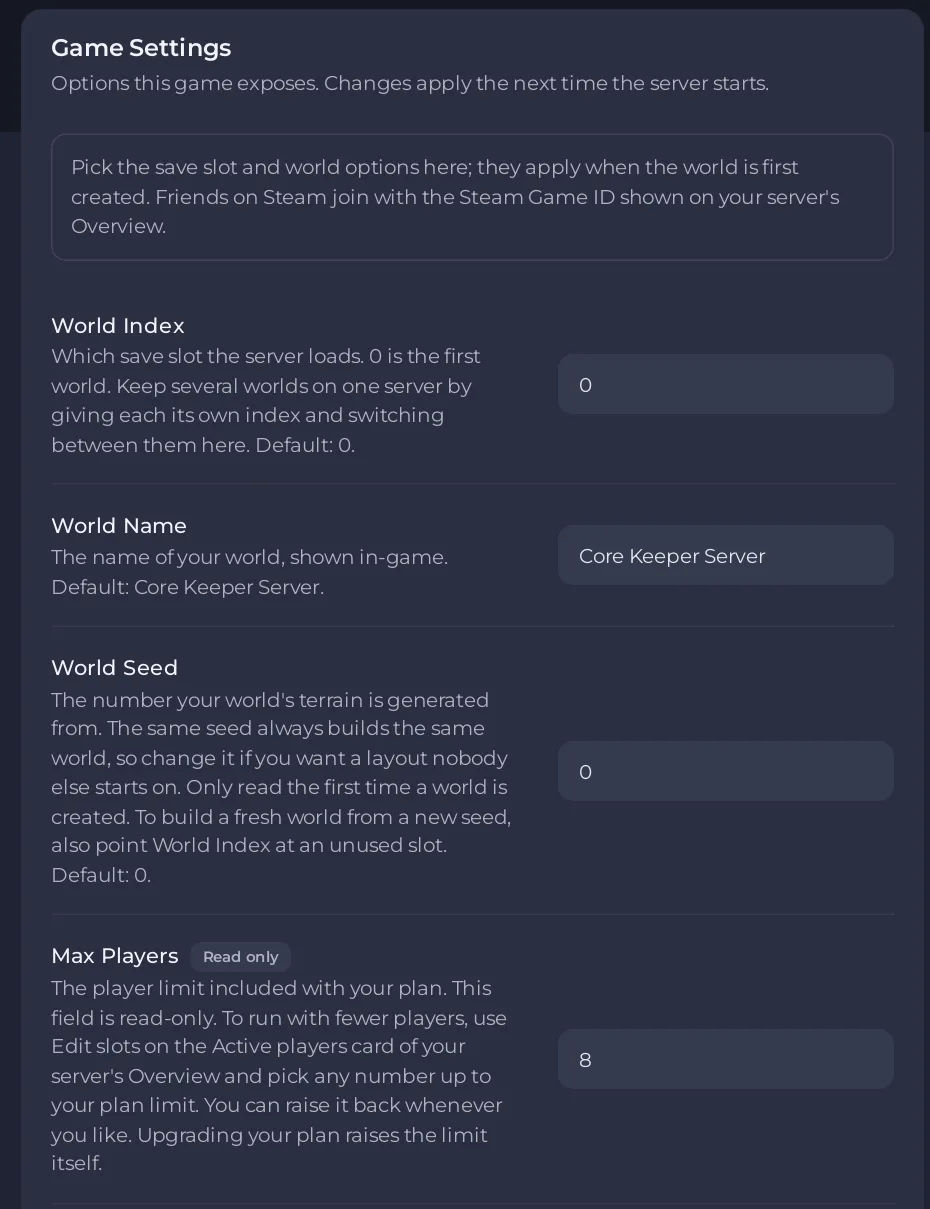
To go back, set World Index to the old number and restart. Players join with the same Game ID whichever world is loaded.
How do world slots work?
0is the first world. A new server uses slot0.- Each slot has its own world file:
0.world.gzipfor slot0,1.world.gzipfor slot1, and so on. - A slot with no world yet gets a brand new world the first time the server loads it, built with the current World Name, World Seed and Hard mode.
Where are the world files?
In Files, the worlds are in .config/unity3d/Pugstorm/Core Keeper/DedicatedServer/worlds. The folder name starts with a dot, so it is near the top of the main folder in Files. Open each folder in turn: the search box only looks inside the folder you are in.
The DedicatedServer folder also holds the admin list (Admins.json) and the ban list (PlayerBans.json). They are shared by all worlds on the server.
What should I know before I add worlds?
- The World Reset task deletes every world on the server, every World Index slot, not only the one in use: How to start a new world on your Core Keeper server.
- Bring a world from your PC into a slot: How to upload your own Core Keeper world.
- The panel also has Instances for completely separate setups: How to use instances to switch between worlds.


