

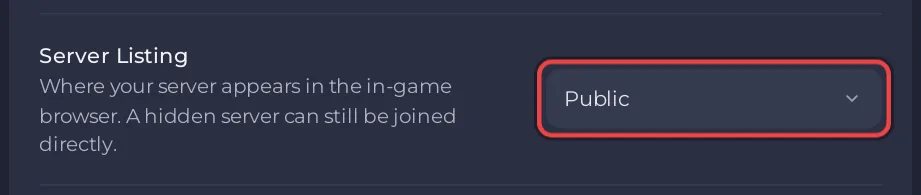
Set Server Listing to Public on the Game Settings page and restart. A new or just restarted server can take a few minutes to appear. Players do not have to wait: Connect to IP with the IP and port from the Play with friends card always works while the server is online.
Check the listing
- Open your server in the panel, click the Settings tab, then Game Settings.
Look at Server Listing:
- Public: listed for everyone.
- Friends only: listed for friends only.
- Hidden: not listed.
- Choose Public and click Restart now.
Still missing
- Wait a few minutes after the server is Online. The list refreshes on its own schedule.
- Search by name. The list shows the Server Name from Game Settings, not the name of the server in the panel.
- Check the filters in the game's server list, for example game version, password or modded servers.
- Version: the list may hide servers on another game version. Restart the server so it updates: Players see a version mismatch on your 7 Days to Die server.
- Console players only see crossplay servers: How to let console players join your 7 Days to Die server.
Join without the list
On a PC, choose Join a Game, then Connect to IP, and type the IP and port from the Play with friends card: How to join your 7 Days to Die server.


