

Your players join your 7 Days to Die server with its Server Address, shown on the server's Overview page in the panel. 7 Days to Die is a zombie survival, crafting and base-building game that you can play with friends online, and a hosted dedicated server keeps your world running around the clock so players can join without anyone having to host from their own PC.
Join in a few steps
- Open your server in the panel. If the status badge says Offline, click Start and wait until it says Online. See How to start, stop, restart and force-stop your server.
- On the Overview page, click the copy icon next to Server Address. It looks like
address:port.
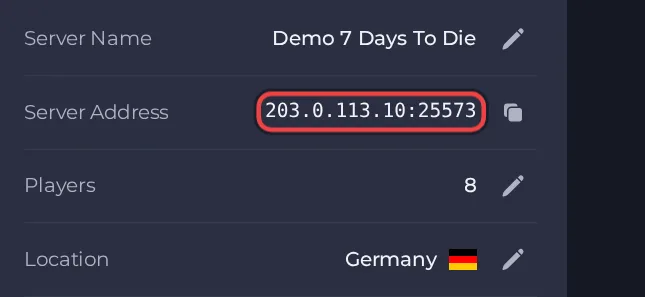
- Launch 7 Days to Die on the same game version as the server.
- From the main menu choose JOIN A GAME.
- Choose CONNECT TO IP...
- Type the address from the Server Address on your Overview page in the IP box and the port number in the port box (they are two separate boxes, so do not paste the colon and port into the first one).
- If you set a Server Password, type it in the Password box. Leave it empty if the server has no password.
- Click CONNECT. Next time you start the game, CONTINUE on the main menu reconnects you to your last session.
- If you would rather browse, the same JOIN A GAME screen has a server list. A server only appears there when Server Listing is set to Public (or Friends only, for friends), and the list can take a while to show a new server, so joining by IP is the dependable route.
Ports
Players only use the port in the Server Address on the Overview page. The game's remote console (telnet) runs on an internal port that is not for players and is not reachable from outside by default.
Game version
The game version on every player's PC must match the server, and any mods must match too, otherwise players get an incompatible version error. With Auto Update on (the default) the server checks for a new game build each time it starts, so after the developers release a patch, restart the server to update it, and players update through Steam as usual. Switching Auto Update off holds the server on its current build, which only makes sense when a mod has not caught up yet. If you put a test build in Beta Branch, every player must be on that same test build too. A change to Beta Branch only takes effect on a reinstall, so ask support to do it for you, after a backup.
If you cannot join
- The server must be Online. Check the badge at the top of the page.
- Copy the address again from the panel. A missing or mistyped port is the most common cause.
- Make sure every player runs a compatible game version and the same mods.
- Check the password, if you set one. See How to set up your 7 Days to Die server.
- More checks: How to join your server and 7 Days to Die server problems and fixes.





