

To change how many players can join a Vintage Story server on PlayNHost, click the pencil beside Slots on the server's Overview page, pick a number up to your plan's limit and click Update. The server restarts with the new limit. The Max Clients field under Settings shows the same number and is read only.
How do I change the player slots?
- Open your server in the panel. The Overview page opens.
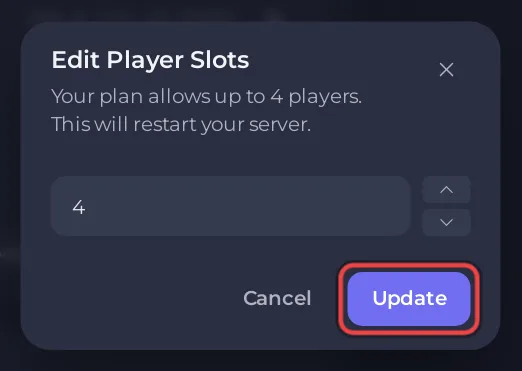
- In the server card, click the pencil beside Slots. The Edit Player Slots dialog opens and says how many players your plan allows.
- Pick the number of slots, with the field or the Increase and Decrease buttons.
- Click Update. Your server restarts, so warn anyone who is playing first.
You can lower the number to keep a small group, and raise it back up to your plan's limit at any time.
Why can I not change Max Clients in Settings?
Max Clients on the Game Settings page is marked Read only because it follows the Slots row. The panel writes the number into the server's MaxClients setting in serverconfig.json on every start, so editing that line in Files does not last either.
Can players wait when the server is full?
Yes. Set Join queue size in the serverconfig.json card under Settings, Config files to the number of players who may wait, and click Save & restart. The default 0 means no queue. See Vintage Story server settings: every option explained.
How many players can my server handle?
Each extra player uses more memory. The official guide's rough estimate is 1 GB plus 300 MB per player: How much RAM does a Vintage Story server need? and How many players can a Vintage Story server have?.
For the panel's slot dialog on any game, see How to rename your server and change player slots.


