%7B.s%7Banimation%3Ab%201.5s%20ease-out%20both%7D.d%7Banimation-delay%3A.16s%7D%7D%40keyframes%20b%7B0%25%7Bfill%3A%23F4F6FA%7D18%25%7Bfill%3A%23FFE08A%7D34%25%2C70%25%7Bfill%3A%23FF8A1F%7D80%25%7Bfill%3A%23FFE08A%7D100%25%7Bfill%3A%23FF8A1F%7D%7D%3C%2Fstyle%3E%3Cg%20transform%3D%22translate(143%20428.93)%20scale(3.885906)%22%3E%3Cg%20transform%3D%22translate(0%202)%22%20fill%3D%22%23706EF0%22%3E%3Cpath%20d%3D%22M0%200%20H48%20A40%2040%200%200%201%2048%2080%20V100%20H0%20Z%22%2F%3E%3Cpath%20transform%3D%22translate(91.75%200)%22%20d%3D%22M0%200%20L48%200%20L48%2050%20L76%2050%20L76%20100%20L0%20100%20Z%22%2F%3E%3Cpath%20transform%3D%22translate(173%200)%22%20d%3D%22M0%20100%20L58%20-4%20L116%20100%20Z%22%2F%3E%3Cpath%20transform%3D%22translate(264.25%200)%22%20d%3D%22M0%200%20L104%200%20L76%2050%20L76%20100%20L28%20100%20L28%2050%20Z%22%2F%3E%3Cg%20transform%3D%22translate(375%200)%22%3E%3Cpath%20d%3D%22M0%200%20L50%2038%20L50%200%20L100%200%20L100%20100%20L0%20100%20Z%22%20fill%3D%22%23F4F6FA%22%2F%3E%3Crect%20class%3D%22s%22%20x%3D%2247%22%20y%3D%2263%22%20width%3D%2219%22%20height%3D%2230%22%2F%3E%3Crect%20class%3D%22s%20d%22%20x%3D%2274%22%20y%3D%2263%22%20width%3D%2219%22%20height%3D%2230%22%2F%3E%3C%2Fg%3E%3Cpath%20transform%3D%22translate(484.75%200)%22%20d%3D%22M0%200%20L48%200%20L48%2037%20L52%2037%20L52%200%20L100%200%20L100%20100%20L52%20100%20L52%2063%20L48%2063%20L48%20100%20L0%20100%20Z%22%2F%3E%3Cpath%20transform%3D%22translate(588.5%200)%22%20d%3D%22M0%2050%20A53%2053%200%201%200%20106%2050%20A53%2053%200%201%200%200%2050%20Z%22%2F%3E%3Cpath%20transform%3D%22translate(698.25%200)%22%20d%3D%22M25%200%20H102%20V50%20H77%20A25%2025%200%200%201%2077%20100%20H0%20V50%20H25%20A25%2025%200%200%201%2025%200%20Z%22%2F%3E%3Cpath%20transform%3D%22translate(804%200)%22%20d%3D%22M0%200%20L90%200%20L90%2050%20L69%2050%20L69%20100%20L21%20100%20L21%2050%20L0%2050%20Z%22%2F%3E%3C%2Fg%3E%3C%2Fg%3E%3C%2Fsvg%3E)


To bring back one world, open Worlds, pick the world, and click Rewind to this on a backup under Server backups. Only that world is taken out of the backup, other worlds stay as they are, and you can undo it. To put the whole server back as it was, use Restore to server on the Backups page.
Anything played on that world since the backup is lost. If you might want the current state back, make a new backup first, or use the Worlds page way, which keeps the world as it is now so you can undo.
Way 1: one world, from the Worlds page (recommended)
- Open your server in the panel and click Worlds in the left menu.
- Click the world on Your worlds. The right card shows Rewind and its name.
- Under Server backups, find the backup by its date and click Rewind to this.
- Read the steps in the window: the panel reads the backup and takes out only that world's folder, the server stops so the game saves and lets go of its files, the world from the backup replaces the current one (which is kept so you can undo), and the server starts again if it was running.
- Click Rewind to this.

The window shows Reading the backup with a file count, then Putting the world back. When it says Done., the world is back as it was in that backup. Undo in the same window puts it back as it was before. You can close the window with Close, it carries on.
This needs the backup Restore permission. More on the timeline: How to rewind your Valheim world to an earlier copy.
Way 2: the whole server, from Backups
Use this to put back everything at once: every world, the lists and the mods.
- Click Backups in the left menu and make a backup of the current state first, so you can come back to it.
- Find the backup you want. A backup of a Valheim server shows No game files, because the server downloads the game's own files again.
- Open the menu in its row and choose Restore to server.
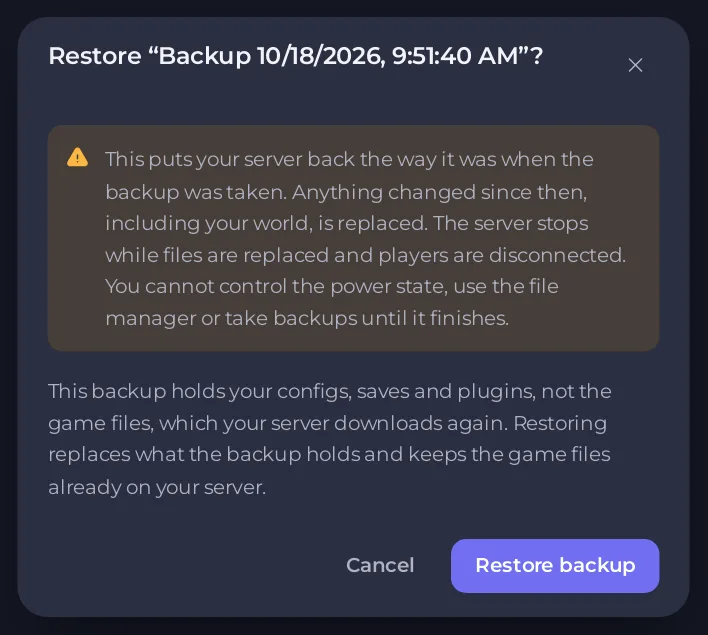
- Read the window. The server stops while files are replaced and players are disconnected. You cannot use the power controls or the file manager until it is done. For a backup without game files the window adds that restoring replaces what the backup holds and keeps the game files already on your server.
- Click Restore backup.
- When the badge says Offline again, click Start.
- Open Worlds and check the active world, or the Console for
ZNet.LoadWorld:: How to check which world your Valheim server loaded.
A restore of a backup marked No game files only puts back what the backup holds. Worlds and save files added since the backup stay on the server next to the restored ones. If the world loads a newer save than you expected, use Way 1 instead: it replaces the world folder as a whole.
Which backup to pick
Backups are listed with their date and whether they are Automatic, Manual or Scheduled. Pick the last one from before the problem. See How to create, download and restore backups.





