

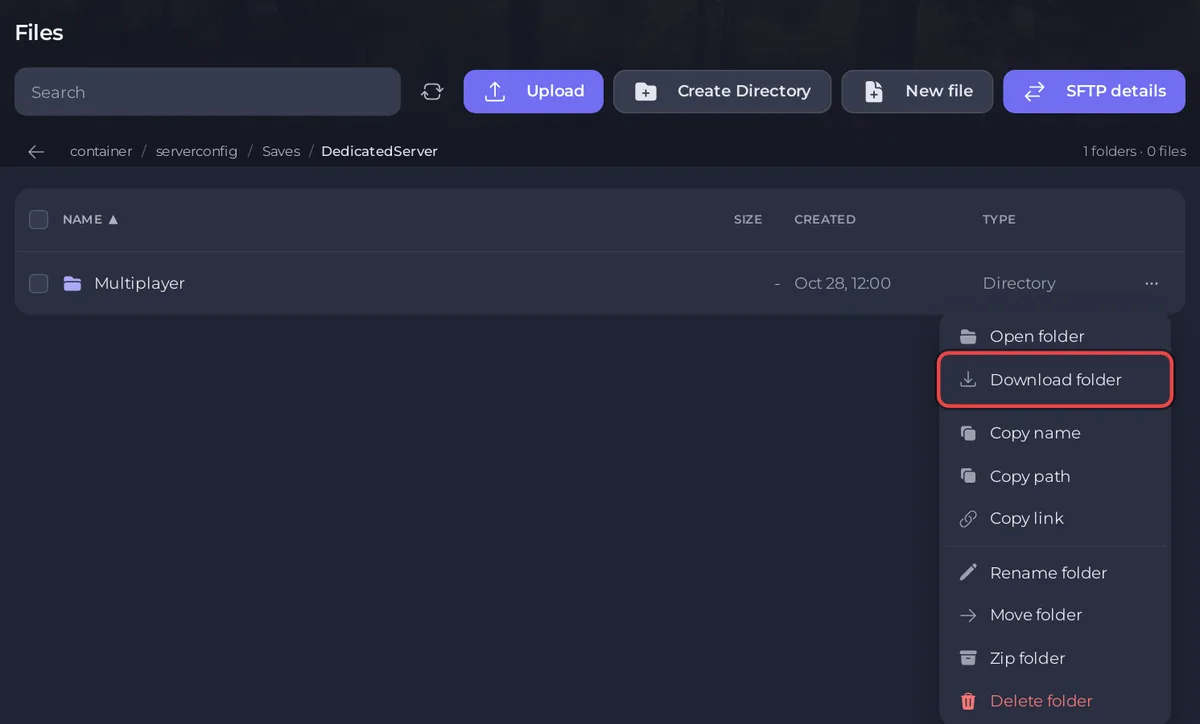
To download the save of a Sons of the Forest server on PlayNHost, open Files, go to serverconfig/Saves/DedicatedServer/Multiplayer, open the menu of the save slot folder you want and choose Download folder. Each save slot is one folder, so one download holds one island.
Download one island
- Open your server in the panel. For a copy that holds everything, wait 10 minutes after the last change in the game: the server saves by itself every 10 minutes.
- Click the Files tab and open
serverconfig, thenSaves,DedicatedServerandMultiplayer. - Find the folder of the save slot you play. Save Slot in Settings, Game Settings says which slot that is. A server that has only ever used one slot has one folder here.
- Open that folder's menu and choose Download folder. The download starts in your browser.
The .zip files beside the slot folders are backup archives the game makes by itself. Download one of those too if you want an older state of the island.
Download every save slot at once
Open the menu of the Multiplayer folder itself and choose Download folder. For big folders, Zip folder first and download the .zip, or use SFTP: How to connect to your server files with SFTP.
Keep a full copy of the server
A download from Files holds the island only. A backup also holds your settings, owner list and mods, and you can restore it in one step: How to back up and restore your Sons of the Forest world.


