%7B.s%7Banimation%3Ab%201.5s%20ease-out%20both%7D.d%7Banimation-delay%3A.16s%7D%7D%40keyframes%20b%7B0%25%7Bfill%3A%23F4F6FA%7D18%25%7Bfill%3A%23FFE08A%7D34%25%2C70%25%7Bfill%3A%23FF8A1F%7D80%25%7Bfill%3A%23FFE08A%7D100%25%7Bfill%3A%23FF8A1F%7D%7D%3C%2Fstyle%3E%3Cg%20transform%3D%22translate(143%20428.93)%20scale(3.885906)%22%3E%3Cg%20transform%3D%22translate(0%202)%22%20fill%3D%22%23706EF0%22%3E%3Cpath%20d%3D%22M0%200%20H48%20A40%2040%200%200%201%2048%2080%20V100%20H0%20Z%22%2F%3E%3Cpath%20transform%3D%22translate(91.75%200)%22%20d%3D%22M0%200%20L48%200%20L48%2050%20L76%2050%20L76%20100%20L0%20100%20Z%22%2F%3E%3Cpath%20transform%3D%22translate(173%200)%22%20d%3D%22M0%20100%20L58%20-4%20L116%20100%20Z%22%2F%3E%3Cpath%20transform%3D%22translate(264.25%200)%22%20d%3D%22M0%200%20L104%200%20L76%2050%20L76%20100%20L28%20100%20L28%2050%20Z%22%2F%3E%3Cg%20transform%3D%22translate(375%200)%22%3E%3Cpath%20d%3D%22M0%200%20L50%2038%20L50%200%20L100%200%20L100%20100%20L0%20100%20Z%22%20fill%3D%22%23F4F6FA%22%2F%3E%3Crect%20class%3D%22s%22%20x%3D%2247%22%20y%3D%2263%22%20width%3D%2219%22%20height%3D%2230%22%2F%3E%3Crect%20class%3D%22s%20d%22%20x%3D%2274%22%20y%3D%2263%22%20width%3D%2219%22%20height%3D%2230%22%2F%3E%3C%2Fg%3E%3Cpath%20transform%3D%22translate(484.75%200)%22%20d%3D%22M0%200%20L48%200%20L48%2037%20L52%2037%20L52%200%20L100%200%20L100%20100%20L52%20100%20L52%2063%20L48%2063%20L48%20100%20L0%20100%20Z%22%2F%3E%3Cpath%20transform%3D%22translate(588.5%200)%22%20d%3D%22M0%2050%20A53%2053%200%201%200%20106%2050%20A53%2053%200%201%200%200%2050%20Z%22%2F%3E%3Cpath%20transform%3D%22translate(698.25%200)%22%20d%3D%22M25%200%20H102%20V50%20H77%20A25%2025%200%200%201%2077%20100%20H0%20V50%20H25%20A25%2025%200%200%201%2025%200%20Z%22%2F%3E%3Cpath%20transform%3D%22translate(804%200)%22%20d%3D%22M0%200%20L90%200%20L90%2050%20L69%2050%20L69%20100%20L21%20100%20L21%2050%20L0%2050%20Z%22%2F%3E%3C%2Fg%3E%3C%2Fg%3E%3C%2Fsvg%3E)


Quick Tasks, in the left menu, is where you run a task now, pin it to the Overview, or put it on a timer. For Project Zomboid it has its own tasks, Save World, Announce to Players, Check Mod Updates and World Wipe, and five ready-made schedules: Restart with warnings and four wipes.
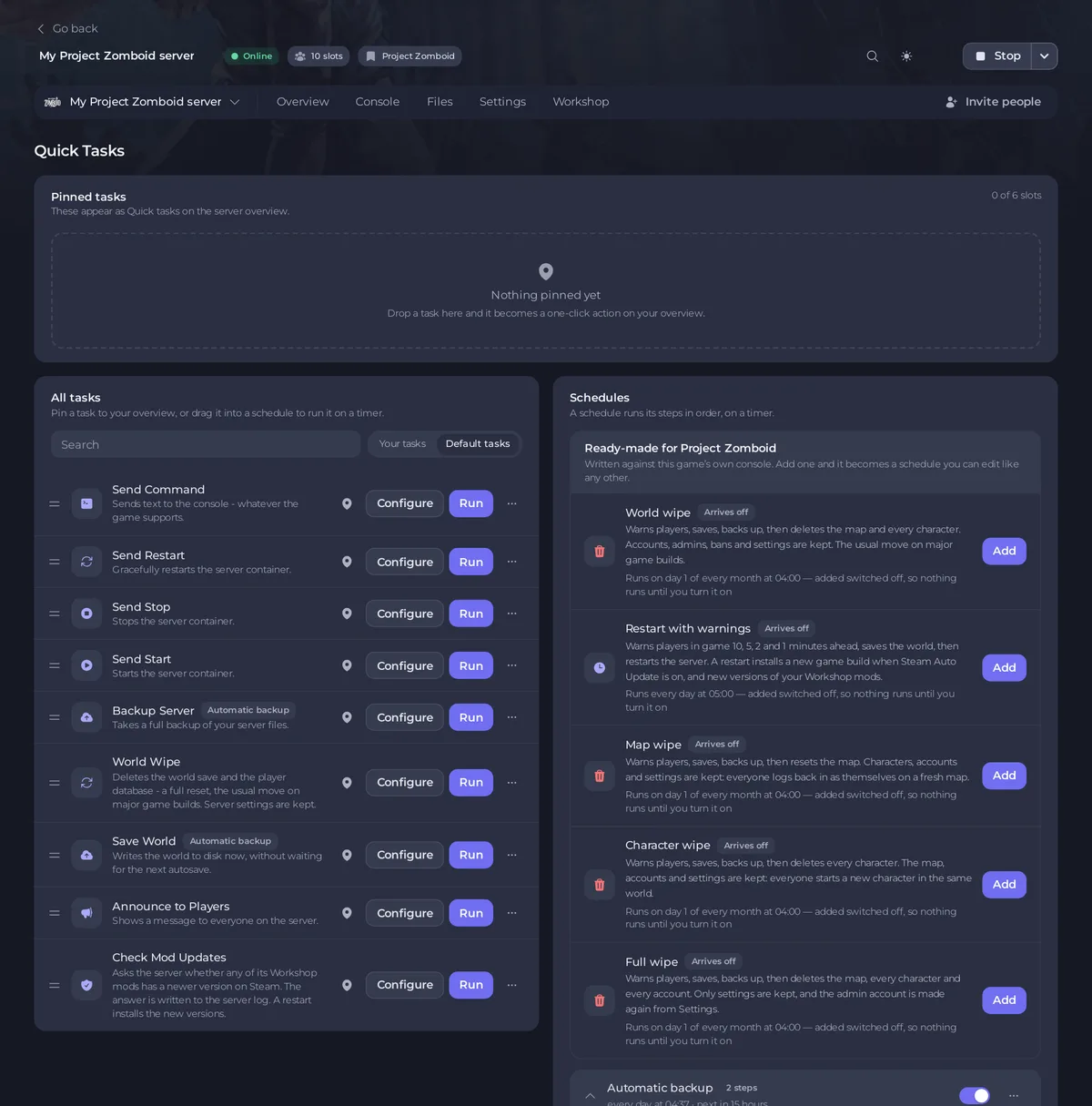
The page
- Pinned tasks: "These appear as Quick tasks on the server overview." Drop a task here to pin it.
- All tasks: every task, with a Search box and the filters Your tasks and Default tasks.
- Schedules: the schedules on your server, with Ready-made for Project Zomboid above them.
The tasks
| Task | What it does |
|---|---|
| Save World | "Writes the world to disk now, without waiting for the next autosave." It sends save. |
| Announce to Players | "Shows a message to everyone on the server." It sends servermsg with your Message. |
| Check Mod Updates | Asks the server whether any Workshop mod has a newer version on Steam. The answer goes to the server log. A restart installs the new versions. |
| World Wipe | Runs the Full wipe: warns players for 10 minutes, saves, backs up, then deletes the map, every character and every account. Only settings are kept. |
| Send Command | Sends text to the console, for example an admin command. |
| Send Restart, Send Stop, Send Start | Restarts, stops or starts the server. The game saves the world as it stops. |
| Backup Server | Takes a full backup now. |
The World page has every kind of wipe with its own choices, and is the better place for one now: How to wipe your Project Zomboid server. The commands you can send: Project Zomboid admin commands that work.
Run, pin or schedule a task
- Run runs it now. A task that needs a value, such as Announce to Players or Send Command, opens Configure task first. Save task there only saves your version under Your tasks: it does not run it. Click Run on it there to send it.
- World Wipe opens Run World Wipe? first, and its button Run World Wipe starts it. It runs as the Full wipe schedule, which then stays in your list of schedules, switched off.
- Pin to overview, in the task's menu, adds it to the Quick tasks card on the Overview.
- Schedule…, in the same menu, puts it on a timer: the window Schedule task asks for Arguments, then the Time (Once or Repeats), then Schedule.
The ready-made schedules
| Schedule | What it does |
|---|---|
| Restart with warnings | Every day at 05:00, while the server is online: warns players 10, 5, 2 and 1 minutes ahead, saves, restarts. |
| Map wipe, Character wipe, World wipe, Full wipe | On the 1st of every month: warn players, save, back up, then wipe that part of the world and start again. |
Each one is added switched off with Add: turn it on with its switch when you want it. One that is already on your server says On this server. The nightly Automatic backup is already in your list of schedules on a new server with backup space. More: How to schedule restarts and backups for your Project Zomboid server and How to schedule a wipe on your Project Zomboid server.

Manage a schedule
Each schedule has a switch to turn it on or off, and a menu with Edit schedule…, Run now and Delete schedule. Click a schedule to open it: you see its steps, Add step, when it last ran, and the switch Skip while players are online: How to restart your Project Zomboid server only when nobody is online.
The page cannot change the time of a schedule that exists. For another time, make a new schedule and switch the old one off. The time of the Automatic backup can be changed on the Backups page, with Edit under Scheduled backups.
Good to know
- The full guide to the page: How to schedule tasks and automatic backups.
- A friend who should use this page needs a role with the schedule permissions: How to invite friends and give them access to your server.





