%7B.s%7Banimation%3Ab%201.5s%20ease-out%20both%7D.d%7Banimation-delay%3A.16s%7D%7D%40keyframes%20b%7B0%25%7Bfill%3A%23F4F6FA%7D18%25%7Bfill%3A%23FFE08A%7D34%25%2C70%25%7Bfill%3A%23FF8A1F%7D80%25%7Bfill%3A%23FFE08A%7D100%25%7Bfill%3A%23FF8A1F%7D%7D%3C%2Fstyle%3E%3Cg%20transform%3D%22translate(143%20428.93)%20scale(3.885906)%22%3E%3Cg%20transform%3D%22translate(0%202)%22%20fill%3D%22%23706EF0%22%3E%3Cpath%20d%3D%22M0%200%20H48%20A40%2040%200%200%201%2048%2080%20V100%20H0%20Z%22%2F%3E%3Cpath%20transform%3D%22translate(91.75%200)%22%20d%3D%22M0%200%20L48%200%20L48%2050%20L76%2050%20L76%20100%20L0%20100%20Z%22%2F%3E%3Cpath%20transform%3D%22translate(173%200)%22%20d%3D%22M0%20100%20L58%20-4%20L116%20100%20Z%22%2F%3E%3Cpath%20transform%3D%22translate(264.25%200)%22%20d%3D%22M0%200%20L104%200%20L76%2050%20L76%20100%20L28%20100%20L28%2050%20Z%22%2F%3E%3Cg%20transform%3D%22translate(375%200)%22%3E%3Cpath%20d%3D%22M0%200%20L50%2038%20L50%200%20L100%200%20L100%20100%20L0%20100%20Z%22%20fill%3D%22%23F4F6FA%22%2F%3E%3Crect%20class%3D%22s%22%20x%3D%2247%22%20y%3D%2263%22%20width%3D%2219%22%20height%3D%2230%22%2F%3E%3Crect%20class%3D%22s%20d%22%20x%3D%2274%22%20y%3D%2263%22%20width%3D%2219%22%20height%3D%2230%22%2F%3E%3C%2Fg%3E%3Cpath%20transform%3D%22translate(484.75%200)%22%20d%3D%22M0%200%20L48%200%20L48%2037%20L52%2037%20L52%200%20L100%200%20L100%20100%20L52%20100%20L52%2063%20L48%2063%20L48%20100%20L0%20100%20Z%22%2F%3E%3Cpath%20transform%3D%22translate(588.5%200)%22%20d%3D%22M0%2050%20A53%2053%200%201%200%20106%2050%20A53%2053%200%201%200%200%2050%20Z%22%2F%3E%3Cpath%20transform%3D%22translate(698.25%200)%22%20d%3D%22M25%200%20H102%20V50%20H77%20A25%2025%200%200%201%2077%20100%20H0%20V50%20H25%20A25%2025%200%200%201%2025%200%20Z%22%2F%3E%3Cpath%20transform%3D%22translate(804%200)%22%20d%3D%22M0%200%20L90%200%20L90%2050%20L69%2050%20L69%20100%20L21%20100%20L21%2050%20L0%2050%20Z%22%2F%3E%3C%2Fg%3E%3C%2Fg%3E%3C%2Fsvg%3E)


Open Quick Tasks, scroll to Schedules, and under Ready-made for Project Zomboid add Restart with warnings. It warns players in game 10, 5, 2 and 1 minutes ahead, saves the world, then restarts the server. A restart is useful for a Project Zomboid server because new game builds and new versions of your Workshop mods only install when it starts.
Why restart at all
- With Steam Auto Update on, a new game build installs at the next start. Players whose game updated cannot join an older server.
- The server downloads Workshop updates only as it starts. A player with a newer mod version is refused until the server restarts. See Players get "Workshop item version is different than the server".
Add Restart with warnings
- Open Quick Tasks in the left menu.
- Find Schedules, then Ready-made for Project Zomboid. The cards are World wipe and Restart with warnings. The Automatic backup is not offered here: it is already in your list of schedules below.
- Click Add on Restart with warnings. It is added switched off.
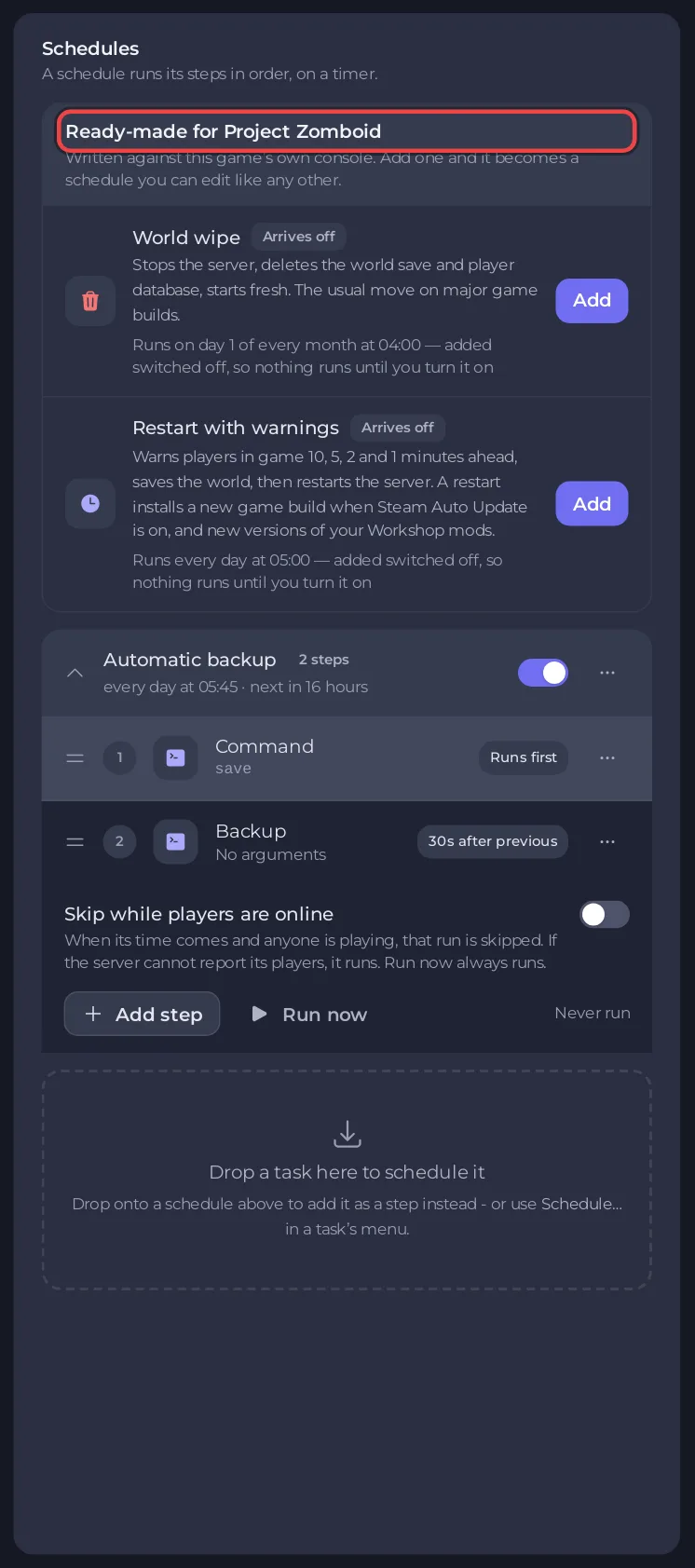
- Switch it on with the switch on its card. It runs every day at 05:00, as its card says, and only while the server is online. The panel cannot change the time of a schedule: Edit schedule… in its menu only opens the card. If 05:00 does not suit you, build your own restart at another time (below) and leave this one off.
It sends these steps, in order: a servermsg at the start saying "Server restarting in 10 minutes", more at 5, 2 and 1 minute, save, and then the restart. The whole run takes 10 minutes. Tell your players when it runs.
The nightly Automatic backup
New servers with backup space get an Automatic backup schedule that is on. It runs save first, then takes a full backup. Its card under Schedules shows when it runs next. To change when it runs, open Backups in the left menu, find it under Scheduled backups, open its menu and choose Edit. More about backups on a timer: How to schedule tasks and automatic backups. Once your backup allowance is full, the oldest unlocked backup makes room for the newest.
Build your own
- Drag a task onto Schedules, or open a task's menu and choose Schedule…. The window Schedule task has two steps, Arguments and Time, then Schedule. For a restart at your own time, schedule Send Restart this way, with Repeats, Every day and the time under At. It sends no warnings. A task you drag onto a schedule is added as its last step, 30 seconds after the one before, and steps cannot be moved, so warnings cannot be put in front of the restart this way.
- Choose Once or Repeats. For a repeat, How often offers Every hour, Every day, Every week, Every month and Advanced (cron).
- Useful tasks: Save World, Announce to Players, Send Restart, Backup Server and Check Mod Updates.
Do not switch on World wipe
World wipe is a ready-made schedule that deletes every world and every account. It is switched off on purpose: How to delete a Project Zomboid world or start fresh.
To send a message by hand: How to send a message to everyone on your Project Zomboid server. To restart only when a mod updated: How to restart your Project Zomboid server when a mod updates.





