%7B.s%7Banimation%3Ab%201.5s%20ease-out%20both%7D.d%7Banimation-delay%3A.16s%7D%7D%40keyframes%20b%7B0%25%7Bfill%3A%23F4F6FA%7D18%25%7Bfill%3A%23FFE08A%7D34%25%2C70%25%7Bfill%3A%23FF8A1F%7D80%25%7Bfill%3A%23FFE08A%7D100%25%7Bfill%3A%23FF8A1F%7D%7D%3C%2Fstyle%3E%3Cg%20transform%3D%22translate(143%20428.93)%20scale(3.885906)%22%3E%3Cg%20transform%3D%22translate(0%202)%22%20fill%3D%22%23706EF0%22%3E%3Cpath%20d%3D%22M0%200%20H48%20A40%2040%200%200%201%2048%2080%20V100%20H0%20Z%22%2F%3E%3Cpath%20transform%3D%22translate(91.75%200)%22%20d%3D%22M0%200%20L48%200%20L48%2050%20L76%2050%20L76%20100%20L0%20100%20Z%22%2F%3E%3Cpath%20transform%3D%22translate(173%200)%22%20d%3D%22M0%20100%20L58%20-4%20L116%20100%20Z%22%2F%3E%3Cpath%20transform%3D%22translate(264.25%200)%22%20d%3D%22M0%200%20L104%200%20L76%2050%20L76%20100%20L28%20100%20L28%2050%20Z%22%2F%3E%3Cg%20transform%3D%22translate(375%200)%22%3E%3Cpath%20d%3D%22M0%200%20L50%2038%20L50%200%20L100%200%20L100%20100%20L0%20100%20Z%22%20fill%3D%22%23F4F6FA%22%2F%3E%3Crect%20class%3D%22s%22%20x%3D%2247%22%20y%3D%2263%22%20width%3D%2219%22%20height%3D%2230%22%2F%3E%3Crect%20class%3D%22s%20d%22%20x%3D%2274%22%20y%3D%2263%22%20width%3D%2219%22%20height%3D%2230%22%2F%3E%3C%2Fg%3E%3Cpath%20transform%3D%22translate(484.75%200)%22%20d%3D%22M0%200%20L48%200%20L48%2037%20L52%2037%20L52%200%20L100%200%20L100%20100%20L52%20100%20L52%2063%20L48%2063%20L48%20100%20L0%20100%20Z%22%2F%3E%3Cpath%20transform%3D%22translate(588.5%200)%22%20d%3D%22M0%2050%20A53%2053%200%201%200%20106%2050%20A53%2053%200%201%200%200%2050%20Z%22%2F%3E%3Cpath%20transform%3D%22translate(698.25%200)%22%20d%3D%22M25%200%20H102%20V50%20H77%20A25%2025%200%200%201%2077%20100%20H0%20V50%20H25%20A25%2025%200%200%201%2025%200%20Z%22%2F%3E%3Cpath%20transform%3D%22translate(804%200)%22%20d%3D%22M0%200%20L90%200%20L90%2050%20L69%2050%20L69%20100%20L21%20100%20L21%2050%20L0%2050%20Z%22%2F%3E%3C%2Fg%3E%3C%2Fg%3E%3C%2Fsvg%3E)


There are three ways to start a fresh Project Zomboid world. Changing Server Name is the safest: it makes a new world and keeps the old one. The World Wipe task deletes every world and every player account on the server. Deleting one world folder by hand removes just that world. All three are permanent unless you have a backup.
Way 1: a new Server Name (keeps the old world)
- Open Settings, then Game Settings. Change Server Name to a name you have not used, letters and digits only.
- Restart the server. The game makes a new world with its own settings files and a new accounts database.
- To return to the old world later, set the old name back: How to switch between Project Zomboid worlds on your server.
Way 2: World Wipe (deletes everything)
World Wipe deletes the world save and the player database, for every world on the server: it deletes everything inside .cache/Saves/Multiplayer and .cache/db. Server settings files are kept. Accounts, bans, the whitelist and access levels are gone, and the admin account is made again at the next start from Admin Username and Admin Password.
- Make a backup: How to back up and restore your Project Zomboid world.
- Open Quick Tasks in the left menu. Under All tasks, find World Wipe and click Run.
- The window Run World Wipe? says "This deletes files from your server. Only a backup can bring them back." and lists what is deleted under Deleted from Files. Leave Back up the server first ticked: it is ticked by default when your plan has backup slots, and the wipe starts only once the backup has finished.
- Click Run World Wipe. The server stops, the files are deleted and the server starts again. The Console shows each step.
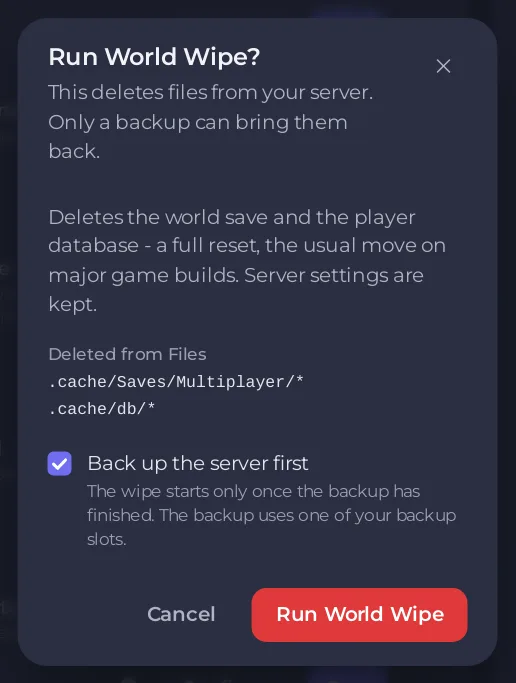
The wipe runs as the ready-made schedule World wipe, which stays on the Schedules list, switched off. Do not switch it on unless you want a wipe on a timer. It is made for the day a major game build needs a fresh world.
Way 3: delete one world by hand
This removes one world and leaves the others and the accounts.
- Make a backup, then Stop the server.
- Open Files, then
.cache,Saves,Multiplayer. Open the menu of the folder and choose Delete folder. - To erase that world's accounts, bans and admin as well, delete
.cache/db/<name>.db. Keep it if you want the same players to make new characters with their accounts. - Start the server. If the name is still the same, the game makes a new world under that name.
Good to know
- A fresh world starts with the game's default rules unless you edit the settings files. To use a preset: How to choose a sandbox preset for your Project Zomboid server.
- To bring your players' new characters back to a specific place: How to set a spawn point on your Project Zomboid server.





