%7B.s%7Banimation%3Ab%201.5s%20ease-out%20both%7D.d%7Banimation-delay%3A.16s%7D%7D%40keyframes%20b%7B0%25%7Bfill%3A%23F4F6FA%7D18%25%7Bfill%3A%23FFE08A%7D34%25%2C70%25%7Bfill%3A%23FF8A1F%7D80%25%7Bfill%3A%23FFE08A%7D100%25%7Bfill%3A%23FF8A1F%7D%7D%3C%2Fstyle%3E%3Cg%20transform%3D%22translate(143%20428.93)%20scale(3.885906)%22%3E%3Cg%20transform%3D%22translate(0%202)%22%20fill%3D%22%23706EF0%22%3E%3Cpath%20d%3D%22M0%200%20H48%20A40%2040%200%200%201%2048%2080%20V100%20H0%20Z%22%2F%3E%3Cpath%20transform%3D%22translate(91.75%200)%22%20d%3D%22M0%200%20L48%200%20L48%2050%20L76%2050%20L76%20100%20L0%20100%20Z%22%2F%3E%3Cpath%20transform%3D%22translate(173%200)%22%20d%3D%22M0%20100%20L58%20-4%20L116%20100%20Z%22%2F%3E%3Cpath%20transform%3D%22translate(264.25%200)%22%20d%3D%22M0%200%20L104%200%20L76%2050%20L76%20100%20L28%20100%20L28%2050%20Z%22%2F%3E%3Cg%20transform%3D%22translate(375%200)%22%3E%3Cpath%20d%3D%22M0%200%20L50%2038%20L50%200%20L100%200%20L100%20100%20L0%20100%20Z%22%20fill%3D%22%23F4F6FA%22%2F%3E%3Crect%20class%3D%22s%22%20x%3D%2247%22%20y%3D%2263%22%20width%3D%2219%22%20height%3D%2230%22%2F%3E%3Crect%20class%3D%22s%20d%22%20x%3D%2274%22%20y%3D%2263%22%20width%3D%2219%22%20height%3D%2230%22%2F%3E%3C%2Fg%3E%3Cpath%20transform%3D%22translate(484.75%200)%22%20d%3D%22M0%200%20L48%200%20L48%2037%20L52%2037%20L52%200%20L100%200%20L100%20100%20L52%20100%20L52%2063%20L48%2063%20L48%20100%20L0%20100%20Z%22%2F%3E%3Cpath%20transform%3D%22translate(588.5%200)%22%20d%3D%22M0%2050%20A53%2053%200%201%200%20106%2050%20A53%2053%200%201%200%200%2050%20Z%22%2F%3E%3Cpath%20transform%3D%22translate(698.25%200)%22%20d%3D%22M25%200%20H102%20V50%20H77%20A25%2025%200%200%201%2077%20100%20H0%20V50%20H25%20A25%2025%200%200%201%2025%200%20Z%22%2F%3E%3Cpath%20transform%3D%22translate(804%200)%22%20d%3D%22M0%200%20L90%200%20L90%2050%20L69%2050%20L69%20100%20L21%20100%20L21%2050%20L0%2050%20Z%22%2F%3E%3C%2Fg%3E%3C%2Fg%3E%3C%2Fsvg%3E)


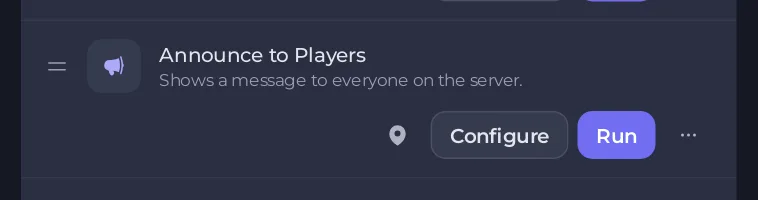
To tell everyone on your Project Zomboid server something, use the Announce to Players task: type the message and run it. Or type servermsg "Your message" in the Console. Everyone online sees the message in their game.
Announce to Players
- Open Quick Tasks in the left menu.
- Under All tasks, find Announce to Players: "Shows a message to everyone on the server."
- Click Run. The Configure task window opens, because the task needs a text. Type your text in Message (the box suggests
Restarting in 5 minutes) and click Save task. This saves the task with your text under Your tasks; it does not send it yet. - Open Your tasks and click Run on Announce to Players. Everyone online sees the message.
For a different message next time, click Configure on the task under Your tasks, change the text and save.
Quotes and backslashes are removed from the text, so the message stays one piece.
From the Console
Type, without a slash:
`` servermsg "Server restarting in 5 minutes" ``
The game's help says: "Broadcast a message to all connected players." The quotes around the message are needed.
Warn before a restart
The ready-made schedule Restart with warnings sends messages 10, 5, 2 and 1 minute before it saves and restarts: How to schedule restarts and backups for your Project Zomboid server. The switch Restart when a mod updates on the Workshop tab warns 5 minutes and 1 minute before: How to restart your Project Zomboid server when a mod updates.
Good to know
- The server must be running. Nobody is told if it is offline.
- To schedule an announcement, open the task's menu and choose Schedule….
- More commands: Project Zomboid admin commands that work.





