

To change how many players can join a Necesse server on PlayNHost, click the pencil on the Slots row of the Overview page, choose a number up to your plan's slots and click Update. The server restarts with the new limit.
Change the slots
- Open your server in the panel. The Overview page opens.
- On the server card, click the pencil next to Slots.
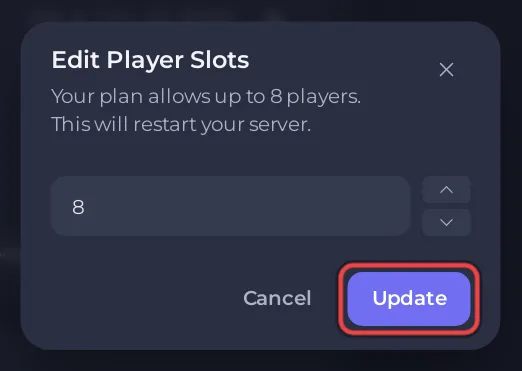
- In Edit Player Slots, type the number or use the arrows. The window says "Your plan allows up to" and your plan's number.
- Click Update. The window warns "This will restart your server.", and the server restarts.
- Wait for the badge to say Online. The Console line that starts with
Started server using portshows the new slot count.
Why is Player Slots read only in Game Settings?
Because the number comes from your plan. The pencil on Slots is the one control for it, and it never goes above your plan's slots. The panel writes the number into cfg/server.cfg at every start, so editing that file by hand does not last.
The field's own help text says "To run with fewer players, click the pencil beside Slots on your server's Overview and pick any number up to your plan limit."
Who can change it?
The server owner, and team members who have the Rename server permission under Team & Roles: the pencil appears only for them. More on slots and names in general: How to rename your server and change player slots.
If players still cannot get in: Players cannot join your Necesse server. How many players Necesse itself allows: How many players can a Necesse server have?.


