

There are two kinds of update. A new build of the Minecraft version you run (bug and security fixes) comes by itself on Paper, Purpur and Folia every time the server starts. A new Minecraft version never installs by itself: you choose it with Edit Server Type on the Overview page, after a backup, because a world opened in a newer version cannot go back.
New builds: restart to update (Paper, Purpur, Folia)
On these types, the server checks for a newer build of your Minecraft version each time it starts. It only ever takes a newer build of the version you already run, so your plugins and your world are unaffected.
- To take the newest build now, restart the server.
- Check the result: the Console shows the server starting on the new build.
The setting behind it is Auto-update server. It is on by default:
- Open the Settings tab and click Game Settings.
- Click Show advanced. You see Auto-update server, Build Number and the server jar's file name.
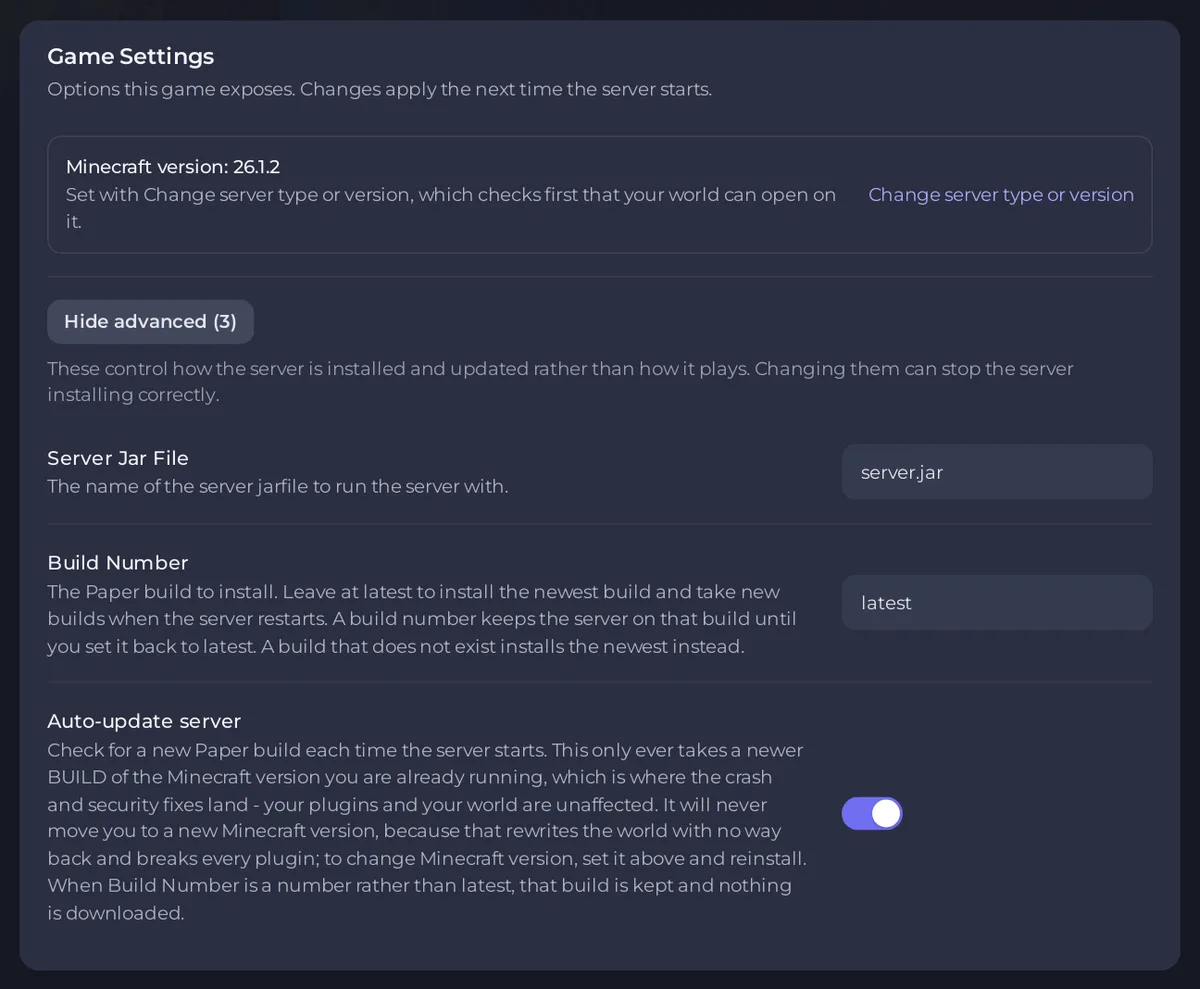
- Build Number
latesttakes new builds at each restart. A build number keeps the server on that build until you set it back tolatest. - Switching Auto-update server off keeps the build you have.
The panel notes that these options control how the server is installed and updated, and that changing them can stop it installing correctly. Leave them as they are unless you are holding a build on purpose.
Velocity and Waterfall proxies have the same two options for their own builds.
A new Minecraft version
Vanilla, Fabric, Forge, NeoForge, Quilt, modpacks and every other type stay on the version you installed until you change it. On Paper and Purpur too, a new Minecraft version is a change you make:
- Make sure your plugins or mods support the new version.
- Open Edit Server Type on the Overview page, keep your type and pick the new version.
- Untick Delete my existing files and start clean (recommended) to keep your world, and keep Back up first (recommended) ticked, or click Try it on a copy first.
The full steps are in How to change your Minecraft version or server type. Game Settings shows your version as Minecraft version: with a Change server type or version link to the same window.
After a Minecraft update comes out
Players' games update to the newest Minecraft by themselves. Until your server is on the same version, they see Outdated server. They can pick your server's version in the Minecraft Launcher until you move: Players see Outdated client or Outdated server on your Minecraft server.
On a plugin server, ViaVersion lets players on a newer version join an older server while your plugins catch up: How to let older and newer Minecraft versions join with ViaVersion.
Plugins, mods and modpacks
- Plugins and mods: How to update plugins and mods on your Minecraft server.
- Modpacks: How to update your modpack on your Minecraft server.


