

On the Maps page, click Start on this map on the map's row and confirm. The server starts on that map from its next start. Click Restart now to use it at once.
Choose the start map
- Open your server in the panel and click Maps in the left menu.
- Find the map and click Start on this map.
- A window titled Start on and the map's name says the server starts on this map from its next start. Click Start on this map.
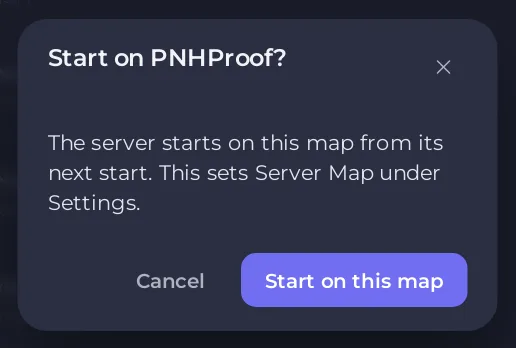
- If the server is running, the page shows Restart to start on and the map's name. Click Restart now, or wait for your next restart. Until then the server stays on its current map.

The map then has the Start map badge.
The same setting on Settings
Server map on the Settings tab, Game Settings, is the same setting. There you type the map's name without .map. The Maps page is easier because you cannot misspell the name.
If the start map is missing
If Server map names a map that is not in data/maps, the server starts on Tutorial instead and says so in the Console. The Maps page shows a notice that the map is not on the server. Upload the map, or choose another start map. See Your DDNet server started on Tutorial instead of your map.
Good to know
- A map saved by a DDNet client under a long name gets its plain name when you choose it here.
- To change map without a restart, switch it live: How to switch the map or add map votes on your DDNet server.





