

To change the player slots of a Day of Defeat: Source server on PlayNHost, click the pencil next to Slots on the Overview server card, pick a number in Edit Player Slots and click Update. You can go as high as your plan allows: 12, 24 or 32 players. The server restarts to apply it.
Change the slot count
- Open your server in the panel. The Overview page opens.
- On the server card, click the pencil next to Slots (Change the player slot count).
- The Edit Player Slots window says
Your plan allows up toand your plan's number. Type a number, or use the arrows. - Click Update.
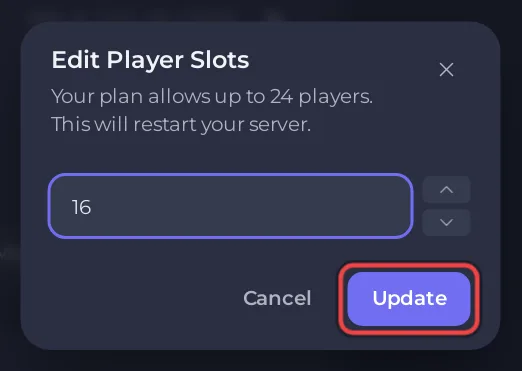
The window says it: This will restart your server. Players are disconnected for a moment and reconnect with the same address.
The Active players card on Overview has an Edit slots button that opens the same window.
Why is Max Players read only in Settings?
Max Players under Game Settings shows the slot count the server starts with, and is marked Read only. It changes when you use Edit Player Slots, never by typing in that field. The server applies it at every start.
How many slots does each plan have?
Day of Defeat: Source plans come with 12, 24 or 32 player slots. The window always shows the most your plan allows. To see your plan, click My plan in the left menu.
Can I lower the slots?
Yes. Any number from 1 up to your plan's limit works. You can raise the number again whenever you like, up to the limit.
Can I add bots to fill empty slots?
The Valve Developer Community says Day of Defeat: Source does not have proper built-in bot support. It names RCBot2, a plugin, as the way to add bots. We have not tested RCBot2 on our servers.


