

When a server needs more memory than its plan gives it, the system stops it, and the Overview page shows This server ran out of memory, with the date and how many times it happened in the last 7 days. Restart it, then look at what grew: mods, map size and zombie counts are the usual causes.
What the panel shows
The card on Overview says the server needed more memory than its plan gives it, and the system stopped it. It has two buttons: Add more memory and See the usage.
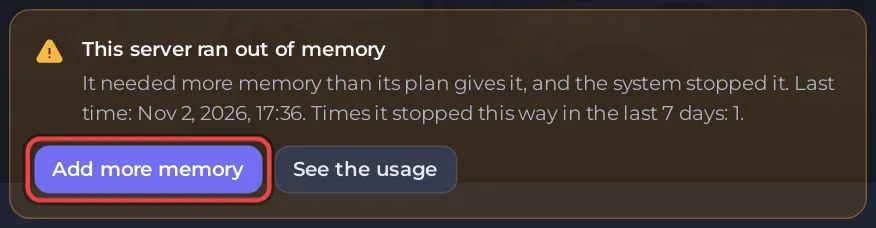
The card appears only when this really happened in the last 7 days. If you do not see it, a stop had another cause: read the Console, or see 7 Days to Die server problems and fixes.
What to check
- Mods: a mod that adds many items, blocks or zombies uses a lot of memory. Did it start after you added one? How to add mods to your 7 Days to Die server.
- Map size: a Large random map uses more than a Small one: How to choose your 7 Days to Die map, world size and seed.
- Zombie and blood moon settings: more zombies at once use more memory: How to change difficulty and sandbox settings on your 7 Days to Die server.
- Uptime: a daily restart starts the game fresh: How to restart your 7 Days to Die server on a schedule.
Click See the usage to see when memory climbed: during a blood moon, with many players, or slowly over days.
Give it more room
If it keeps happening with your normal setup, click Add more memory on the card to move to a plan with more memory: How to change your plan or billing cycle.
The world is saved as the game plays, but the last minutes before the stop can be lost. Your nightly Automatic backup is there if anything went wrong: How to back up and restore your 7 Days to Die world.


