%7B.s%7Banimation%3Ab%201.5s%20ease-out%20both%7D.d%7Banimation-delay%3A.16s%7D%7D%40keyframes%20b%7B0%25%7Bfill%3A%23F4F6FA%7D18%25%7Bfill%3A%23FFE08A%7D34%25%2C70%25%7Bfill%3A%23FF8A1F%7D80%25%7Bfill%3A%23FFE08A%7D100%25%7Bfill%3A%23FF8A1F%7D%7D%3C%2Fstyle%3E%3Cg%20transform%3D%22translate(143%20428.93)%20scale(3.885906)%22%3E%3Cg%20transform%3D%22translate(0%202)%22%20fill%3D%22%23706EF0%22%3E%3Cpath%20d%3D%22M0%200%20H48%20A40%2040%200%200%201%2048%2080%20V100%20H0%20Z%22%2F%3E%3Cpath%20transform%3D%22translate(91.75%200)%22%20d%3D%22M0%200%20L48%200%20L48%2050%20L76%2050%20L76%20100%20L0%20100%20Z%22%2F%3E%3Cpath%20transform%3D%22translate(173%200)%22%20d%3D%22M0%20100%20L58%20-4%20L116%20100%20Z%22%2F%3E%3Cpath%20transform%3D%22translate(264.25%200)%22%20d%3D%22M0%200%20L104%200%20L76%2050%20L76%20100%20L28%20100%20L28%2050%20Z%22%2F%3E%3Cg%20transform%3D%22translate(375%200)%22%3E%3Cpath%20d%3D%22M0%200%20L50%2038%20L50%200%20L100%200%20L100%20100%20L0%20100%20Z%22%20fill%3D%22%23F4F6FA%22%2F%3E%3Crect%20class%3D%22s%22%20x%3D%2247%22%20y%3D%2263%22%20width%3D%2219%22%20height%3D%2230%22%2F%3E%3Crect%20class%3D%22s%20d%22%20x%3D%2274%22%20y%3D%2263%22%20width%3D%2219%22%20height%3D%2230%22%2F%3E%3C%2Fg%3E%3Cpath%20transform%3D%22translate(484.75%200)%22%20d%3D%22M0%200%20L48%200%20L48%2037%20L52%2037%20L52%200%20L100%200%20L100%20100%20L52%20100%20L52%2063%20L48%2063%20L48%20100%20L0%20100%20Z%22%2F%3E%3Cpath%20transform%3D%22translate(588.5%200)%22%20d%3D%22M0%2050%20A53%2053%200%201%200%20106%2050%20A53%2053%200%201%200%200%2050%20Z%22%2F%3E%3Cpath%20transform%3D%22translate(698.25%200)%22%20d%3D%22M25%200%20H102%20V50%20H77%20A25%2025%200%200%201%2077%20100%20H0%20V50%20H25%20A25%2025%200%200%201%2025%200%20Z%22%2F%3E%3Cpath%20transform%3D%22translate(804%200)%22%20d%3D%22M0%200%20L90%200%20L90%2050%20L69%2050%20L69%20100%20L21%20100%20L21%2050%20L0%2050%20Z%22%2F%3E%3C%2Fg%3E%3C%2Fg%3E%3C%2Fsvg%3E)


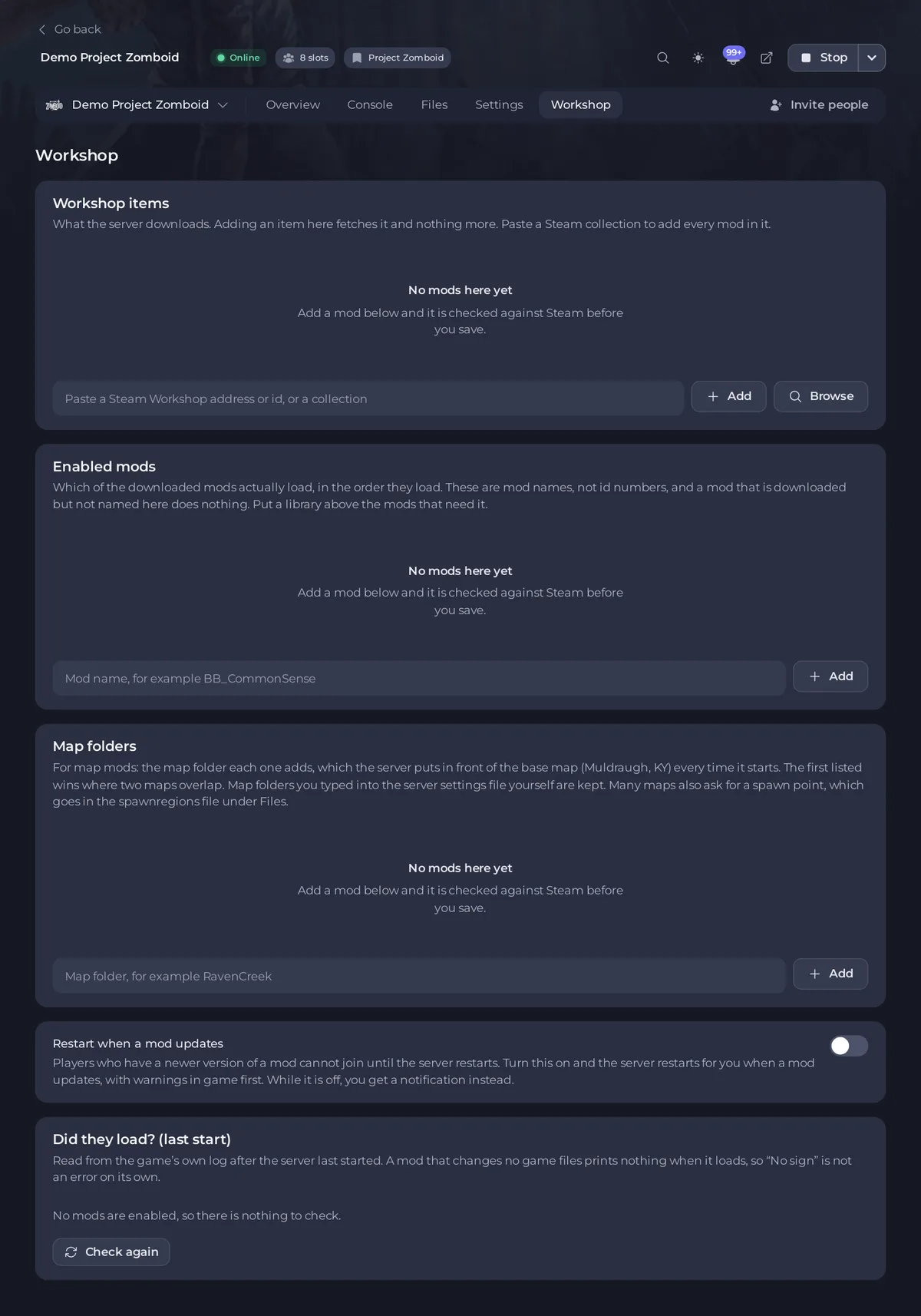
The Workshop tab is where you manage mods for your Project Zomboid server. It has three lists, Workshop items, Enabled mods and Map folders, a switch Restart when a mod updates, and a report card Did they load? (last start). Open the tab at the top of your server page, next to Settings.
The three lists
- Workshop items is what the server downloads. Adding an item here fetches it and nothing more. You can paste a Steam collection too.
- Enabled mods is which of the downloaded mods actually load, in the order they load. These are mod names, not numbers, and a mod that is downloaded but not named here does nothing. This is the most common reason a server looks unmodded.
- Map folders is for map mods only: How to add a map mod to your Project Zomboid server.
Add, Browse and Save
In Workshop items, paste the mod's Steam Workshop address, or just the number at the end of it, and click Add. Or click Browse to search the Workshop for popular and recently updated Project Zomboid mods and add one from there.
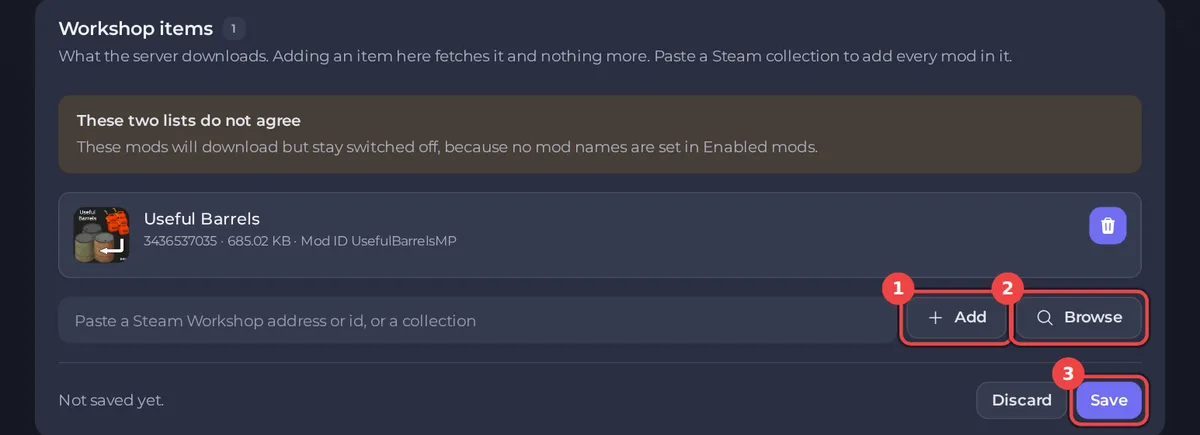
- Anything you type waits for you to click Save under that list (Discard throws it away). Anything added with Browse is saved at once.
A yellow notice says Saved, and not applied yet: "The server picks this up the next time it starts." Click Restart to apply.

You need the permission to change settings for this. The server downloads and updates the listed items itself each time it starts, so a start after a change takes longer than usual.
The badges
The panel looks each item up on Steam. A row shows the mod's name, picture and size, and a badge when something is wrong:
| Badge | Meaning |
|---|---|
| Not found | Steam has no Workshop item with this number. Check it against the number at the end of the mod's address. |
| Wrong game | A real Workshop item, but published for another game, so Project Zomboid cannot load it. |
| Outdated | The mod was last updated before the version of the game your server runs. It downloads, but the game will not load it. On Build 41 legacy a working Build 41 mod can show this badge. See Project Zomboid mods and Build 42: what to know. |
| Not an id | What you typed is not a Workshop number. |
| Collection | The number is a Steam collection: How to add a Steam collection to your Project Zomboid server. |
| Listed twice | The same item is in the list two times. |
Warnings under the lists
- These two lists do not agree: one list has mods and the other is empty, so the mods will download but stay switched off, or are switched on but nothing downloads them.
- A library loads after a mod that needs it, with Move the libraries up: How to fix the mod load order on your Project Zomboid server.
- required mods are missing, with Add all.
Below the lists
The switch Restart when a mod updates: How to restart your Project Zomboid server when a mod updates. Then the card Did they load? (last start): How to check that your Project Zomboid mods loaded.
If Steam does not answer
The page says Could not check these against Steam. Your mods are untouched and listed by number. Names and badges return when Steam answers again.
Back to the overview: How to add mods to your Project Zomboid server. Need a server for your mod pack? See Project Zomboid server hosting.





