%7B.s%7Banimation%3Ab%201.5s%20ease-out%20both%7D.d%7Banimation-delay%3A.16s%7D%7D%40keyframes%20b%7B0%25%7Bfill%3A%23F4F6FA%7D18%25%7Bfill%3A%23FFE08A%7D34%25%2C70%25%7Bfill%3A%23FF8A1F%7D80%25%7Bfill%3A%23FFE08A%7D100%25%7Bfill%3A%23FF8A1F%7D%7D%3C%2Fstyle%3E%3Cg%20transform%3D%22translate(143%20428.93)%20scale(3.885906)%22%3E%3Cg%20transform%3D%22translate(0%202)%22%20fill%3D%22%23706EF0%22%3E%3Cpath%20d%3D%22M0%200%20H48%20A40%2040%200%200%201%2048%2080%20V100%20H0%20Z%22%2F%3E%3Cpath%20transform%3D%22translate(91.75%200)%22%20d%3D%22M0%200%20L48%200%20L48%2050%20L76%2050%20L76%20100%20L0%20100%20Z%22%2F%3E%3Cpath%20transform%3D%22translate(173%200)%22%20d%3D%22M0%20100%20L58%20-4%20L116%20100%20Z%22%2F%3E%3Cpath%20transform%3D%22translate(264.25%200)%22%20d%3D%22M0%200%20L104%200%20L76%2050%20L76%20100%20L28%20100%20L28%2050%20Z%22%2F%3E%3Cg%20transform%3D%22translate(375%200)%22%3E%3Cpath%20d%3D%22M0%200%20L50%2038%20L50%200%20L100%200%20L100%20100%20L0%20100%20Z%22%20fill%3D%22%23F4F6FA%22%2F%3E%3Crect%20class%3D%22s%22%20x%3D%2247%22%20y%3D%2263%22%20width%3D%2219%22%20height%3D%2230%22%2F%3E%3Crect%20class%3D%22s%20d%22%20x%3D%2274%22%20y%3D%2263%22%20width%3D%2219%22%20height%3D%2230%22%2F%3E%3C%2Fg%3E%3Cpath%20transform%3D%22translate(484.75%200)%22%20d%3D%22M0%200%20L48%200%20L48%2037%20L52%2037%20L52%200%20L100%200%20L100%20100%20L52%20100%20L52%2063%20L48%2063%20L48%20100%20L0%20100%20Z%22%2F%3E%3Cpath%20transform%3D%22translate(588.5%200)%22%20d%3D%22M0%2050%20A53%2053%200%201%200%20106%2050%20A53%2053%200%201%200%200%2050%20Z%22%2F%3E%3Cpath%20transform%3D%22translate(698.25%200)%22%20d%3D%22M25%200%20H102%20V50%20H77%20A25%2025%200%200%201%2077%20100%20H0%20V50%20H25%20A25%2025%200%200%201%2025%200%20Z%22%2F%3E%3Cpath%20transform%3D%22translate(804%200)%22%20d%3D%22M0%200%20L90%200%20L90%2050%20L69%2050%20L69%20100%20L21%20100%20L21%2050%20L0%2050%20Z%22%2F%3E%3C%2Fg%3E%3C%2Fg%3E%3C%2Fsvg%3E)


Click Bans on the Active players card, type the player's name exactly as it was banned, and click Unban. The server must be running. The panel has no list of bans for Project Zomboid, because the game keeps them in its own database, so you type the name.
Steps
- Open the Overview page of your server. The server must be Online.
- On the Active players card, click Bans. The window is called Unban a player.
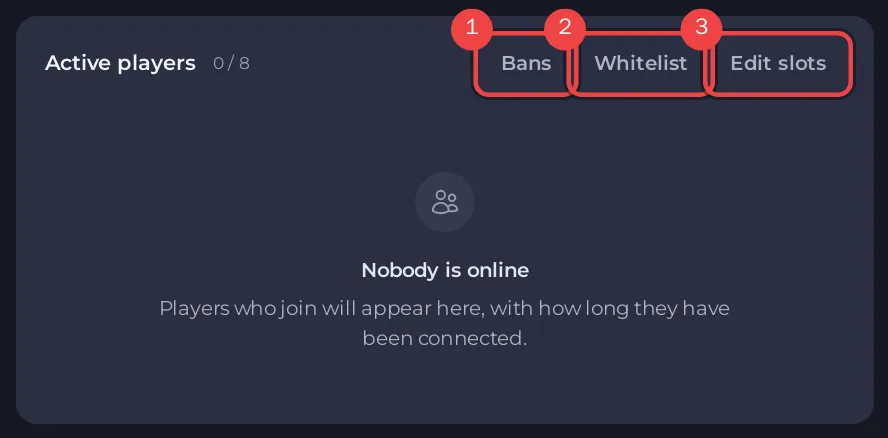
- Type the name in Player name, exactly as it was banned, and click Unban.
- The window says that the unban was sent, and then, when the game answers, "The server confirmed it" and that the player can join again. The Console shows the game's answer too.
The same with a command
In the Console type unbanuser "username". The game's help says: "Unban a player. Use /unbanuser "username"". A good answer reads System unbanned user <name>.
If the game says the user cannot be unbanned
A player who has an access level cannot be unbanned: the game answers "This user can't be banned". The panel can still show the unban as sent. Set their access level to None first, then unban:
- If the player is online, use Set access level… and choose None on the Active players card. If they are not online, type
setaccesslevel "username" "none"in the Console. - Run the unban again.
See How to set access levels on your Project Zomboid server.
Good to know
- The name must match. A different capital letter is a different name to the game.
- A ban by IP address or by Steam ID has its own commands (
unbanipandunbanid) which the game lists in itshelp. The panel's ban button bans by username. - To ban and kick from the panel: How to kick, ban and whitelist players on your Project Zomboid server.





