

To host a Telegram bot 24/7, run it on a server that stays on instead of your PC: create the bot with @BotFather, order a bot plan for Telegram, paste the token on the Bot page and start your code. On a PlayNHost bot plan (from US$1.99 a month) the panel checks the token with Telegram, gives your code the token under the names most libraries use, and offers a ready starter bot in Python or Node.js if you have no code yet. The steps:
- In Telegram, open @BotFather, send
/newbot, choose a name and a username ending inbot, and copy the token it gives you. - On the Telegram bot hosting page, click Create Server on a plan. In the order window, answer What is your bot for? with Telegram and pick the language your bot is written in.
- Open your server in the panel. In the Set up your bot card on Overview, check What runs and click Continue.
- At Connect to Telegram, paste the token and click Connect. Check the bot name shown and click Yes, continue.
- At Your code, click Create a starter bot, or upload your own files or connect Git.
- Click Start bot and wait for Your bot is online in Telegram. Send it /start to try it.
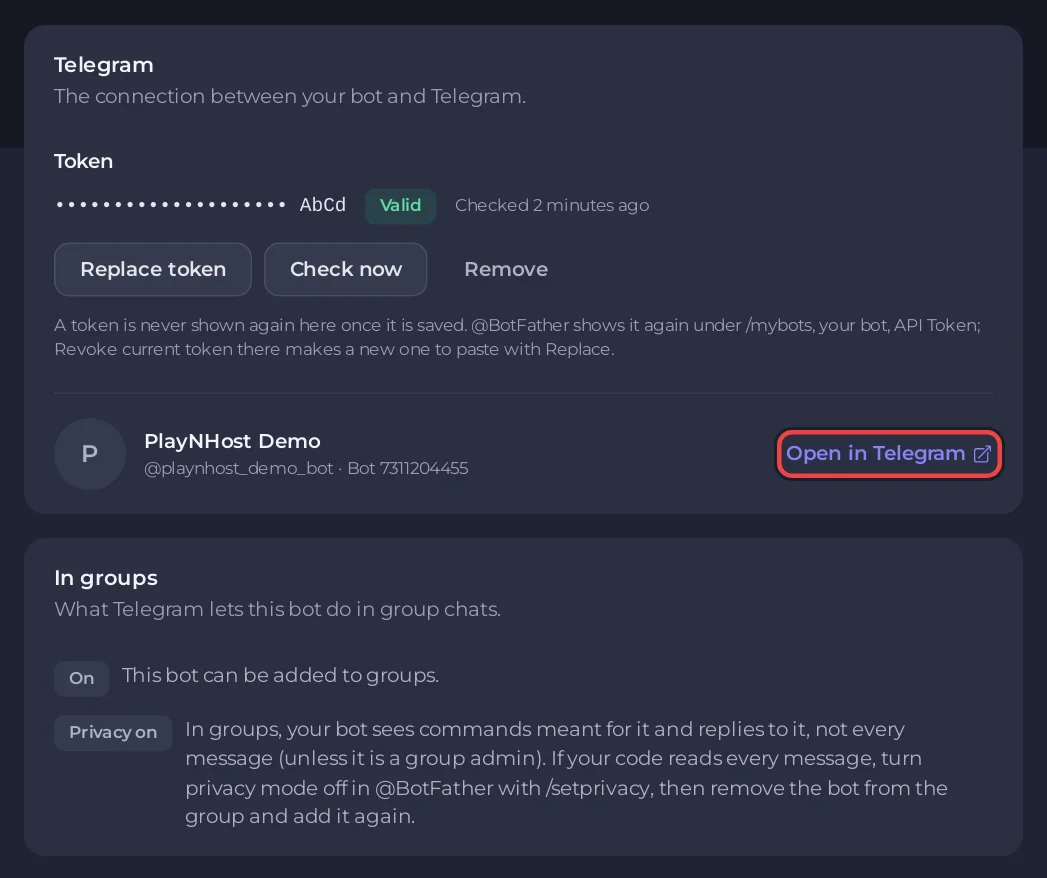
- On the Bot page, pane Telegram, click Open in Telegram and send your bot
/start.
Each step is explained below.
1. Create the bot with @BotFather
- In Telegram, search for @BotFather and open the chat.
- Send
/newbot. @BotFather asks for a name, which people see in chats, then a username. The username must end inbot, for exampletetris_botorTetrisBot. - @BotFather answers with the token, a line like
110201543:AAHdqTcvCH1vGWJxfSeofSAs0K5PALDsaw. Copy it. Anyone who has it controls your bot, so do not share it or put it in your code.
Lost the token? In @BotFather send /mybots, choose your bot, then API Token.
2. Order a plan for Telegram
Every plan runs a Telegram bot, from STARTER (0.5 GB) up. Click Create Server on the plan you want. The order window asks What is your bot for?: choose Telegram. You then pick the language of your bot: Node.js, Python, Java, C# (.NET), Bun, Deno, Go or Rust. Not sure which plan? python-telegram-bot vs aiogram on PlayNHost has the memory we measured for each library.
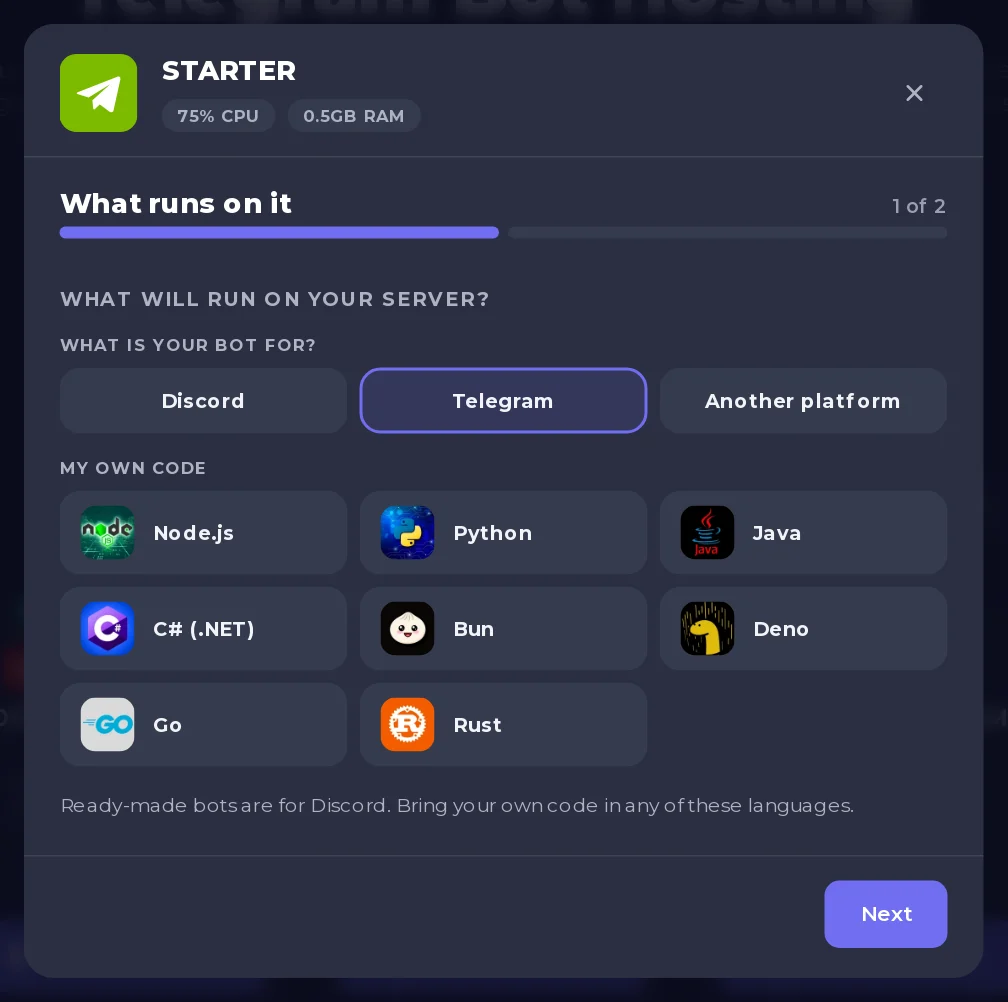
Already have a bot plan set up for Discord? You do not need a new one. On the Bot page, pane Discord, find the card What is this bot for?, choose Telegram and confirm with Switch. Nothing is deleted: a Discord token stays saved and comes back if you switch back. If you had already saved your token in Environment as TELEGRAM_BOT_TOKEN, it becomes the Telegram token, with nothing to paste again.
3. Paste the token
Open your server in the panel. The Set up your bot card on Overview walks you through three steps: What runs, Connect to Telegram and Your code.
- What runs says the language of your server, for example This bot runs Python Bot. Click Continue, or Change what runs if it is the wrong one.
- Connect to Telegram: paste the token under Paste your bot token and click Connect. The panel shows Checking with Telegram..., then your bot's name and @username with Is this your bot?. Click Yes, continue.
You can also paste it on the Bot page, pane Telegram, under Token. A token Telegram refuses is not saved: you see Telegram did not accept that token. Copy it again from @BotFather.
The token is stored encrypted and is never shown again in the panel. Your code gets it as an environment variable under five names, so most examples run without changes:
| Name | Used by |
|---|---|
TELEGRAM_BOT_TOKEN | Our starter bots |
BOT_TOKEN | aiogram, Telegraf and node-telegram-bot-api examples |
TOKEN | The placeholder in python-telegram-bot and pyTelegramBotAPI examples |
TELEGRAM_TOKEN | Common in tutorials |
TELOXIDE_TOKEN | teloxide (Rust), read by Bot::from_env() |
In Python read it with os.environ["TELEGRAM_BOT_TOKEN"], in Node.js with process.env.TELEGRAM_BOT_TOKEN.
4. Add your code
At Your code, the card offers what fits your server:
- Create a starter bot (Node.js and Python servers with no code yet): a small working bot that answers
/start. On Python it writesbot.pyandrequirements.txtwith python-telegram-bot 22; on Node.js it writesindex.jsandpackage.jsonwith grammY. It sets the entry file for you. Change it as you like, then restart. - Upload files: your own bot, with
requirements.txtorpackage.json. Leave outvenv,.venv,__pycache__andnode_modules. See How to upload your bot code. - Connect Git: your code from a Git repository. See How to deploy and update your bot from GitHub.
Your own code must use long polling: run_polling() in python-telegram-bot, start_polling() in aiogram, bot.start() in grammY or launch() in Telegraf. Webhooks need a public HTTPS address, which these plans do not include yet. Moving a bot that used a webhook: How to move a Telegram bot to PlayNHost.
5. Start it
Click Start bot in the card, or press Start, and open Console. On Python, Node.js and Bun the server installs your packages first; the first start takes longer while they download. After that they install again only when you change them (the package list, the package file or the runtime version), when node_modules is missing, or once a day. Otherwise you see:
[PlayNHost] Packages are up to date. They install again when you change them, or after a day.
[PlayNHost] Starting your bot
The starter bot then prints Logged in as @your_bot. The panel reads that line: the chip on Overview turns to Online in Telegram. In your own code, print a line like it when the bot is ready.
6. Open it in Telegram
On the Bot page, pane Telegram, click Open in Telegram. It opens your bot's t.me link. Send /start: the starter bot answers Hello with your first name and Your bot is running on PlayNHost.
The same pane shows your bot's @username and id, and a card In groups with what Telegram lets it do in group chats.
If it does not answer
The panel reads the console and puts a banner above it with the cause and a button to fix it:
- Telegram did not accept your bot token: the token was revoked in @BotFather or copied wrongly. Click Replace the token.
- Your bot is running somewhere else too: another copy uses the same token, often on your PC or your old host.
- A webhook is set on your bot: click Remove the webhook.
Some libraries keep retrying in these cases, so the bot looks running while nothing answers: the banner is how you find out. Details: Fix Telegram bot 409 Conflict.
Questions people ask
Does my bot stay online when I turn off my PC?
Yes. It runs on the server, not on your PC or in your browser. If it crashes it is started again within about a minute; if it crashes again within a minute of that, it stays stopped and Console says why.
Can I use a webhook instead of polling?
Not yet. A webhook needs a public HTTPS address, which these plans do not include yet. Polling needs no address: your bot asks Telegram for new messages. If a webhook is set on your bot, the Telegram pane shows it with Remove webhook, which keeps the messages waiting.
Can I run the same bot on my PC while I test?
Not with the same token at the same time. Telegram lets one copy of a bot ask for messages, so the other gets 409 Conflict. Stop the copy on your PC, or create a second bot in @BotFather for testing.
Why does my bot not see messages in a group?
Telegram's privacy mode is on by default: in groups your bot sees commands meant for it and replies to it, not every message, unless it is a group admin. The In groups card shows Privacy on or Privacy off. To read every message, send /setprivacy to @BotFather, turn it off, then remove the bot from the group and add it again.
Which plan do I need?
STARTER (0.5 GB) runs a python-telegram-bot, aiogram, grammY or Telegraf bot with room for your own code. Choose 1 GB or more when the bot keeps data in memory, handles files or images, or runs several bots in one process. See the plans on Telegram bot hosting.


