%7B.s%7Banimation%3Ab%201.5s%20ease-out%20both%7D.d%7Banimation-delay%3A.16s%7D%7D%40keyframes%20b%7B0%25%7Bfill%3A%23F4F6FA%7D18%25%7Bfill%3A%23FFE08A%7D34%25%2C70%25%7Bfill%3A%23FF8A1F%7D80%25%7Bfill%3A%23FFE08A%7D100%25%7Bfill%3A%23FF8A1F%7D%7D%3C%2Fstyle%3E%3Cg%20transform%3D%22translate(143%20428.93)%20scale(3.885906)%22%3E%3Cg%20transform%3D%22translate(0%202)%22%20fill%3D%22%23706EF0%22%3E%3Cpath%20d%3D%22M0%200%20H48%20A40%2040%200%200%201%2048%2080%20V100%20H0%20Z%22%2F%3E%3Cpath%20transform%3D%22translate(91.75%200)%22%20d%3D%22M0%200%20L48%200%20L48%2050%20L76%2050%20L76%20100%20L0%20100%20Z%22%2F%3E%3Cpath%20transform%3D%22translate(173%200)%22%20d%3D%22M0%20100%20L58%20-4%20L116%20100%20Z%22%2F%3E%3Cpath%20transform%3D%22translate(264.25%200)%22%20d%3D%22M0%200%20L104%200%20L76%2050%20L76%20100%20L28%20100%20L28%2050%20Z%22%2F%3E%3Cg%20transform%3D%22translate(375%200)%22%3E%3Cpath%20d%3D%22M0%200%20L50%2038%20L50%200%20L100%200%20L100%20100%20L0%20100%20Z%22%20fill%3D%22%23F4F6FA%22%2F%3E%3Crect%20class%3D%22s%22%20x%3D%2247%22%20y%3D%2263%22%20width%3D%2219%22%20height%3D%2230%22%2F%3E%3Crect%20class%3D%22s%20d%22%20x%3D%2274%22%20y%3D%2263%22%20width%3D%2219%22%20height%3D%2230%22%2F%3E%3C%2Fg%3E%3Cpath%20transform%3D%22translate(484.75%200)%22%20d%3D%22M0%200%20L48%200%20L48%2037%20L52%2037%20L52%200%20L100%200%20L100%20100%20L52%20100%20L52%2063%20L48%2063%20L48%20100%20L0%20100%20Z%22%2F%3E%3Cpath%20transform%3D%22translate(588.5%200)%22%20d%3D%22M0%2050%20A53%2053%200%201%200%20106%2050%20A53%2053%200%201%200%200%2050%20Z%22%2F%3E%3Cpath%20transform%3D%22translate(698.25%200)%22%20d%3D%22M25%200%20H102%20V50%20H77%20A25%2025%200%200%201%2077%20100%20H0%20V50%20H25%20A25%2025%200%200%201%2025%200%20Z%22%2F%3E%3Cpath%20transform%3D%22translate(804%200)%22%20d%3D%22M0%200%20L90%200%20L90%2050%20L69%2050%20L69%20100%20L21%20100%20L21%2050%20L0%2050%20Z%22%2F%3E%3C%2Fg%3E%3C%2Fg%3E%3C%2Fsvg%3E)


A server open to everyone needs staff who can act without sharing the admin password, protection against people guessing passwords, and room for staff when the server is full. The Make it a public server card on the Maps page sets all of that up with one click, and Undo takes it out again.
What it does
Open your server in the panel, click Maps in the left menu and find the Make it a public server card.
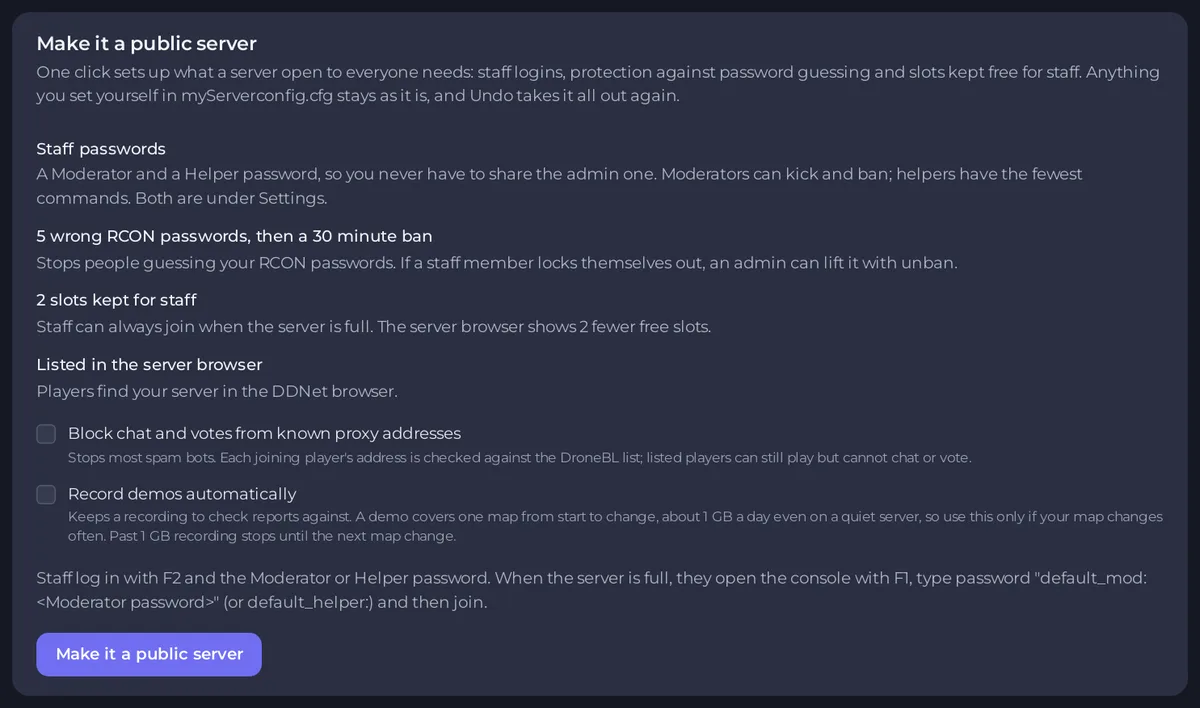
It sets up:
- Staff passwords. A Moderator and a Helper password, so you never have to share the admin one. Moderators can kick and ban. Helpers have the fewest commands. Both are under Settings, as Moderator RCON Password and Helper RCON Password.
- 5 wrong RCON passwords, then a 30 minute ban. This stops people guessing your RCON passwords. If a staff member locks themselves out, an admin can lift it with
unban. - 2 slots kept for staff (1 on a server with fewer than 8 slots). Staff can always join when the server is full. The server browser shows that many fewer free slots.
- Listed in the server browser. Players find your server in the DDNet browser. If Public server list was
0, the preset sets it toipv4.
Two options are yours to choose:
- Block chat and votes from known proxy addresses. This stops most spam bots. Each joining player's address is checked against the DroneBL list. Listed players can still play but cannot chat or vote.
- Record demos automatically. This keeps a recording to check reports against. A demo covers one map from start to change, about 1 GB a day even on a quiet server, so use this only if your map changes often. Past 1 GB, recording stops until the next map change.
Anything you set yourself in myServerconfig.cfg stays as it is. Next to such a line, the card shows Kept yours and your value.
Turn it on
- On the Maps page, read the card, choose your two options and click Make it a public server.
- The panel says Done. Restart the server to apply it. Click Restart now (shown while the server is running), or restart it later.
- Click Update later if you change the options.
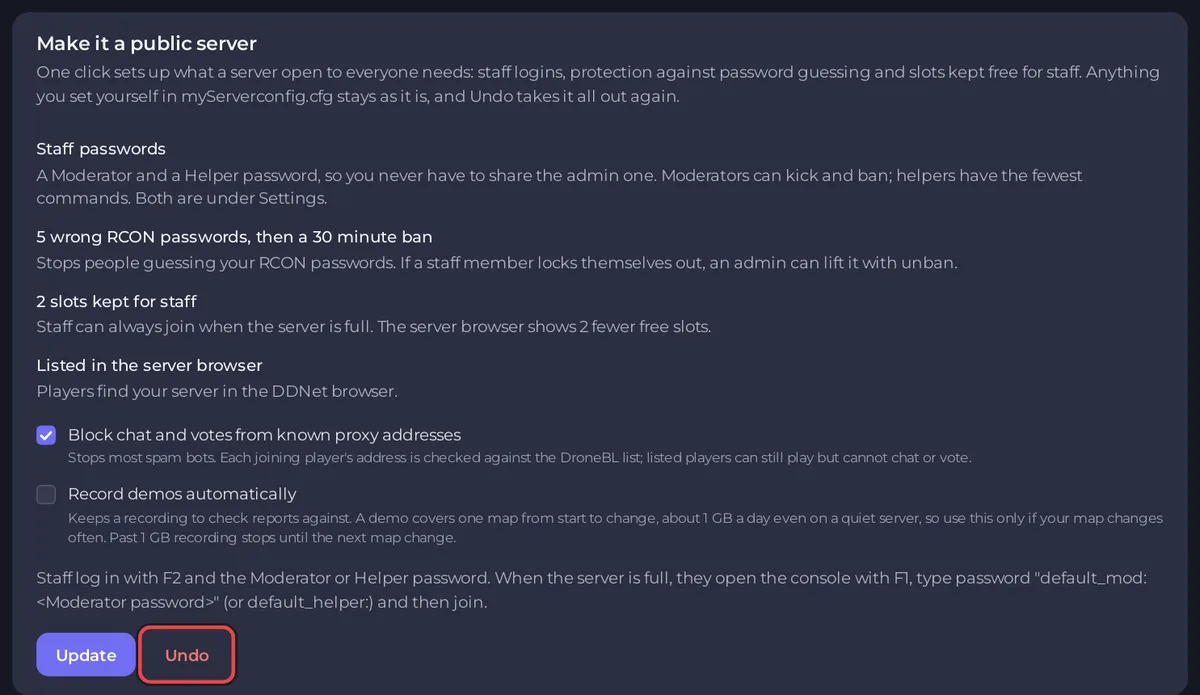
When the preset is on, the button reads Update and an Undo button sits next to it.
If your server has a join password, the card warns you: the server shows with a lock in the browser. Remove the password for a fully public server.
How staff log in
- Staff press F2 in the DDNet client to open the remote console.
- They log in with the Moderator or Helper password.
- When the server is full, staff open the console with F1, type
password "default_mod:<Moderator password>"(ordefault_helper:and the Helper password) and then join.
Give each staff member only the password for their role. Change a password under Settings if it leaks.
Undo it
Click Undo, then Undo again in the window Undo the public-server preset?. The preset lines are taken out of myServerconfig.cfg. Staff passwords it created are cleared unless you changed them, which turns those logins off. If the preset had switched Public server list from 0 to ipv4, it goes back to 0. Your own lines stay. Restart the server to apply it.
Related
- Kick and ban from the panel: How to run admin commands and moderate players on your DDNet server.
- All the settings: How to set up your DDNet server: key settings.





