

A PlayNHost Core Keeper server updates itself when it starts: with Auto Update on, each start checks Steam for a newer Core Keeper server build and installs it. To update now, restart the server. Your worlds, Game ID, admin list and ban list are not touched by an update.
How do I update the server now?
- Open your server in the panel.
- Click Restart, ideally while nobody is playing. See How to start, stop, restart and force-stop your server.
- Watch the Console. A start that downloads an update takes longer than usual.
- Wait for
Started sessionand the Online badge. The server now runs the newest build.
To do this every day by itself: How to restart your Core Keeper server on a schedule.
Where is Auto Update?
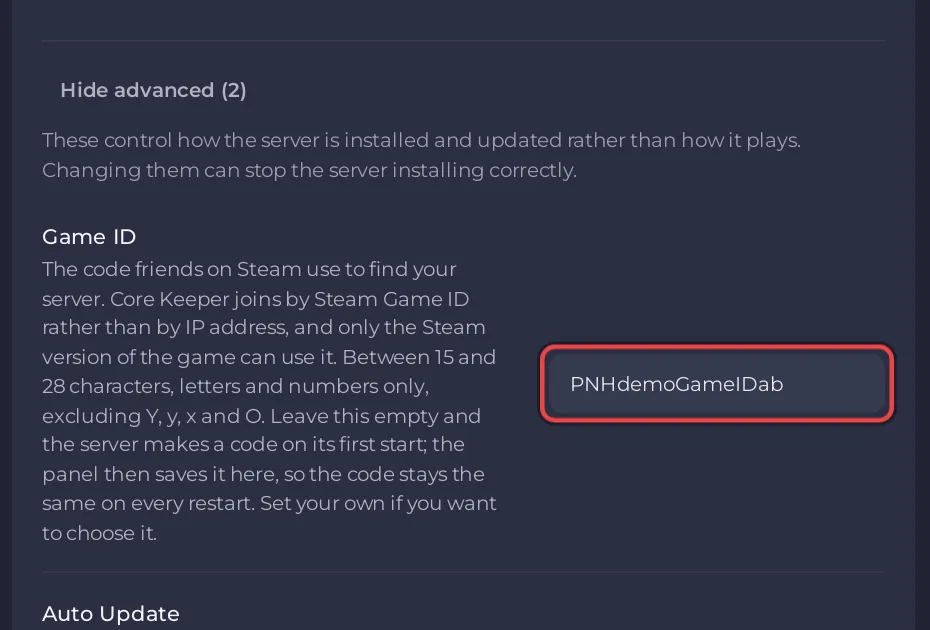
- Click the Settings tab, then Game Settings.
- Click Show advanced (2) at the bottom of the list.
- Find Auto Update. It is on by default.
When should I switch Auto Update off?
Only to stay on the build you have for a while, for example while a mod you use is updated for the new game version. The panel's own help says the same: "Turn this off only if you need to stay on a specific build for mod compatibility." Players whose game has updated cannot join a server that is behind, so switch it back on soon.
Can I pick a beta branch or an older version?
No. The Core Keeper server type has no branch choice: the server installs the current public build from Steam.
What should I do before a big Core Keeper update?
- Take a backup: How to back up and restore your Core Keeper world.
- Expect mods to stop working until their authors update them: How to update or remove mods on your Core Keeper server.
- Ask your players to update their game too, so everyone is on the same version.


