

Most of what you want to change on a Team Fortress 2 server is on one page of the panel.
Open Game Settings
- Open your server in the panel and click the Settings tab.
- Click Game Settings.
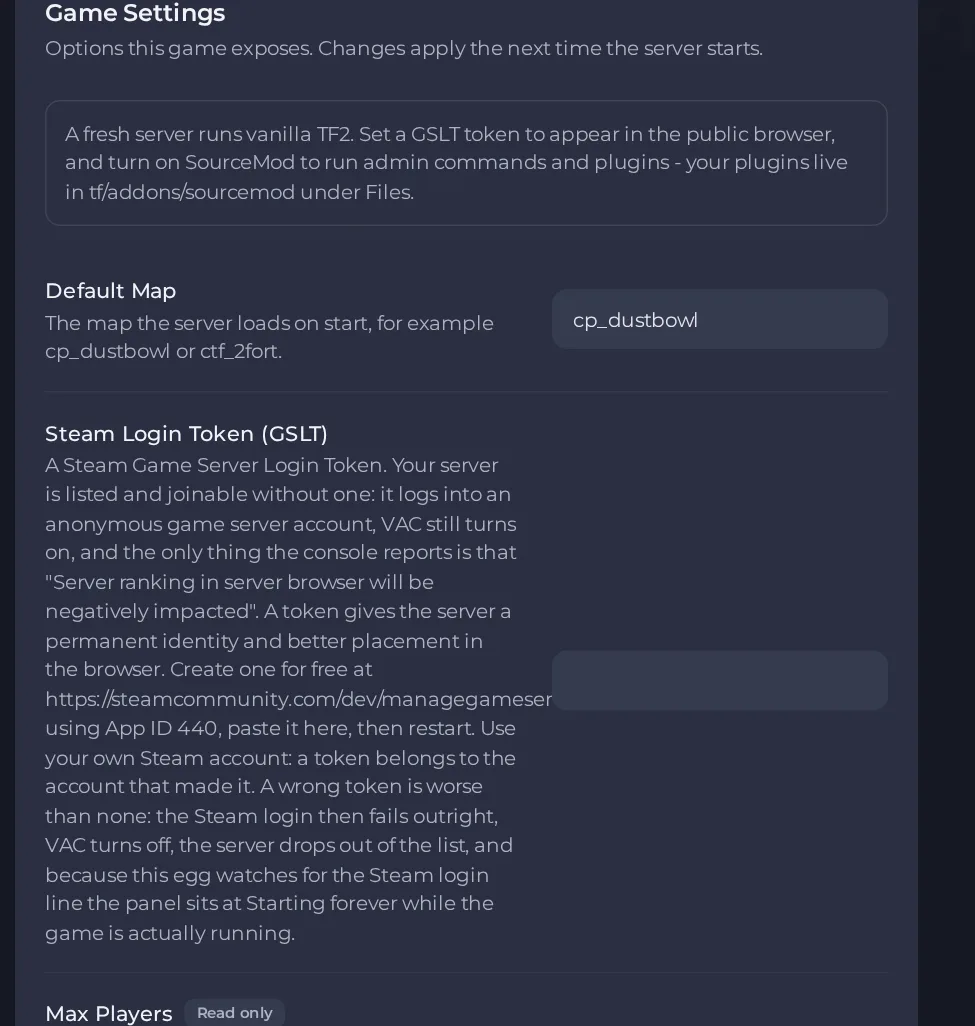
- Change a value and click outside the field, or press Enter. The panel saves it. Switches save as soon as you flip them.
- Restart the server so the change takes effect. See How to start, stop, restart and force-stop your server.
Options most owners change first
- Default Map. The map the server loads on start, for example cp_dustbowl or ctf_2fort; use letters, numbers and underscores, up to 20 characters.
- Server name. The name shown in the in-game server browser and on the scoreboard; use no spaces, asterisks or question marks, and join words with - or _.
- Steam Login Token. Optional but recommended: a free token from your own Steam account (create it at steamcommunity.com/dev/managegameservers with App ID 440) gives the server a permanent identity and better placement in the browser. Exactly 32 letters and digits, or empty. A wrong token stops the server from finishing its start, so leave it empty if unsure.
- Max Players. Read-only and set by your plan; to run with fewer players, use Players on the server Overview page and pick any number up to your plan limit. This restarts your server.
- RCON password. Set it to run admin commands from an RCON tool; leave it empty to keep remote administration off. Use letters, numbers, dashes and underscores only.
- Install SourceMod. Adds SourceMod and Metamod:Source for admin commands and plugins. Adding SourceMod needs the server to be reinstalled, which deletes the server's files by default, including your configs and plugins. Ask support to do it, and download a backup of the tf folder first so you can put your files back.
- Auto Update. Checks for a game update only when the server is reinstalled, not on every start. Leave on unless you need a fixed build for plugin compatibility.
Server name, RCON password, Default Map and the Steam Login Token are read when the server starts, so restart after changing them. Install SourceMod and Auto Update only take effect when support reinstalls the server. A wrong Steam Login Token is worse than none, so double-check it before restarting.
Every option is listed in Team Fortress 2 server settings: every option explained.





