

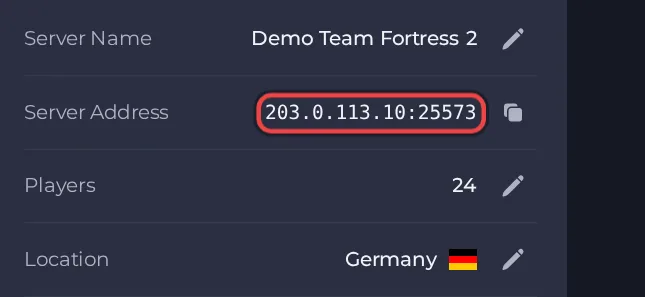
Your players join your Team Fortress 2 server with its Server Address, shown on the server's Overview page in the panel. Team Fortress 2 is Valve's class-based team shooter, and a hosted server lets you run your own community matches on the maps and rules you choose, with your own admins and plugins.
Join in a few steps
- Open your server in the panel. If the status badge says Offline, click Start and wait until it says Online. See How to start, stop, restart and force-stop your server.
- On the Overview page, click the copy icon next to Server Address. It looks like
address:port.
- Launch Team Fortress 2. The developer console is off by default: open the keyboard options, click Advanced, and tick the box that enables the developer console.
- Press the tilde (~) key to open the console.
- Type connect followed by your server's address and port, in the form connect address:port, and press Enter.
Ports
Players join with the single game port shown in the Server Address on the Overview page. Your server has one port, and the server browser uses that same port.
Game version
Auto Update (on by default) checks for a new game build only when the server is reinstalled, not on every start. If players on a newer game build cannot join, ask support to update the server. A reinstall deletes the server's files by default, including your configs and plugins, so download a backup of the tf folder first and put your files back afterwards. Turn Auto Update off only if you must stay on a specific build for SourceMod plugin compatibility.
If you cannot join
- The server must be Online. Check the badge at the top of the page.
- Copy the address again from the panel. A missing or mistyped port is the most common cause.
- Make sure every player runs a compatible game version.
- More checks: How to join your server and Team Fortress 2 server problems and fixes.





