

To remove one mod from a Sons of the Forest server on PlayNHost, delete its .dll from the Mods folder in Files and restart. To run the game with no mods at all, switch RedLoader mod loader off on the Modding tab and restart: the loader leaves the startup, and your mods stay in Mods for next time.
Remove one mod
- Open your server in the panel and click the Files tab.
- Open the
Modsfolder. - Open the menu of the mod's .dll and choose Delete file, then confirm with Delete. Delete any folder the mod's page told you to add with it, too.
- Restart the server from the Overview page.
- In the Console, the line
pnh-redloader: on, N plugin(s) in Mods/shows one plugin fewer.
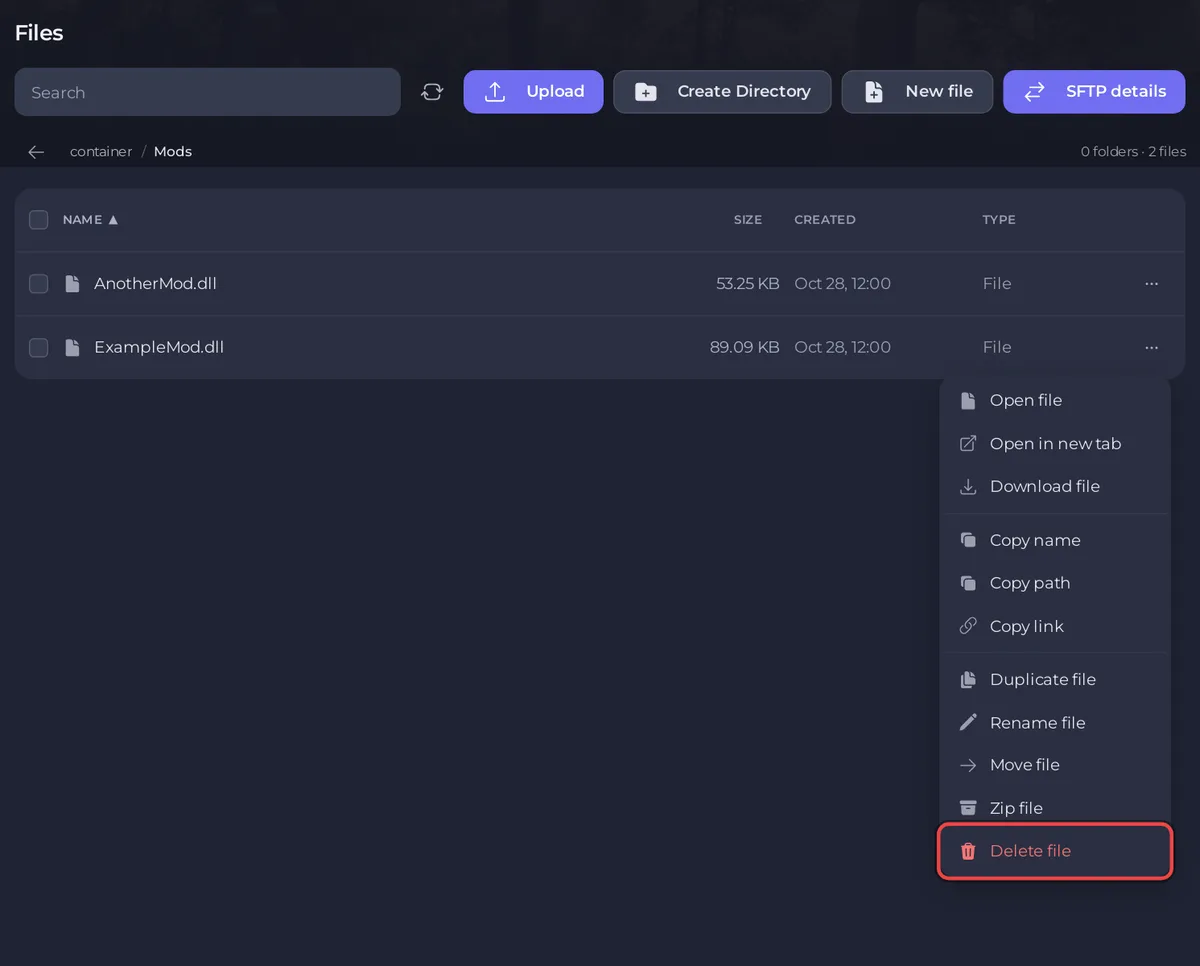
To keep the file for later instead of deleting it, move it out of Mods with Move file into a folder of your own.
Turn all mods off
- Click the Modding tab.
- Switch RedLoader mod loader off on the RedLoader card. The badge changes to Off.
- Click Restart to apply.
- The Console shows
pnh-redloader: turned off. Your plugins in Mods/ are untouched.
The card's own words: "Turning it off takes the loader back out of the startup path on the next start and leaves your mods where they are, so turning it on again picks them straight back up."
Will my world still work without the mod?
Your save itself is not changed by removing a mod, but the panel warns that "a save built with a mod in it can behave oddly without that mod." If the island looks wrong without the mod, put the mod back, or restore the backup you took before you added it: How to back up and restore your Sons of the Forest world.


