%7B.s%7Banimation%3Ab%201.5s%20ease-out%20both%7D.d%7Banimation-delay%3A.16s%7D%7D%40keyframes%20b%7B0%25%7Bfill%3A%23F4F6FA%7D18%25%7Bfill%3A%23FFE08A%7D34%25%2C70%25%7Bfill%3A%23FF8A1F%7D80%25%7Bfill%3A%23FFE08A%7D100%25%7Bfill%3A%23FF8A1F%7D%7D%3C%2Fstyle%3E%3Cg%20transform%3D%22translate(143%20428.93)%20scale(3.885906)%22%3E%3Cg%20transform%3D%22translate(0%202)%22%20fill%3D%22%23706EF0%22%3E%3Cpath%20d%3D%22M0%200%20H48%20A40%2040%200%200%201%2048%2080%20V100%20H0%20Z%22%2F%3E%3Cpath%20transform%3D%22translate(91.75%200)%22%20d%3D%22M0%200%20L48%200%20L48%2050%20L76%2050%20L76%20100%20L0%20100%20Z%22%2F%3E%3Cpath%20transform%3D%22translate(173%200)%22%20d%3D%22M0%20100%20L58%20-4%20L116%20100%20Z%22%2F%3E%3Cpath%20transform%3D%22translate(264.25%200)%22%20d%3D%22M0%200%20L104%200%20L76%2050%20L76%20100%20L28%20100%20L28%2050%20Z%22%2F%3E%3Cg%20transform%3D%22translate(375%200)%22%3E%3Cpath%20d%3D%22M0%200%20L50%2038%20L50%200%20L100%200%20L100%20100%20L0%20100%20Z%22%20fill%3D%22%23F4F6FA%22%2F%3E%3Crect%20class%3D%22s%22%20x%3D%2247%22%20y%3D%2263%22%20width%3D%2219%22%20height%3D%2230%22%2F%3E%3Crect%20class%3D%22s%20d%22%20x%3D%2274%22%20y%3D%2263%22%20width%3D%2219%22%20height%3D%2230%22%2F%3E%3C%2Fg%3E%3Cpath%20transform%3D%22translate(484.75%200)%22%20d%3D%22M0%200%20L48%200%20L48%2037%20L52%2037%20L52%200%20L100%200%20L100%20100%20L52%20100%20L52%2063%20L48%2063%20L48%20100%20L0%20100%20Z%22%2F%3E%3Cpath%20transform%3D%22translate(588.5%200)%22%20d%3D%22M0%2050%20A53%2053%200%201%200%20106%2050%20A53%2053%200%201%200%200%2050%20Z%22%2F%3E%3Cpath%20transform%3D%22translate(698.25%200)%22%20d%3D%22M25%200%20H102%20V50%20H77%20A25%2025%200%200%201%2077%20100%20H0%20V50%20H25%20A25%2025%200%200%201%2025%200%20Z%22%2F%3E%3Cpath%20transform%3D%22translate(804%200)%22%20d%3D%22M0%200%20L90%200%20L90%2050%20L69%2050%20L69%20100%20L21%20100%20L21%2050%20L0%2050%20Z%22%2F%3E%3C%2Fg%3E%3C%2Fg%3E%3C%2Fsvg%3E)


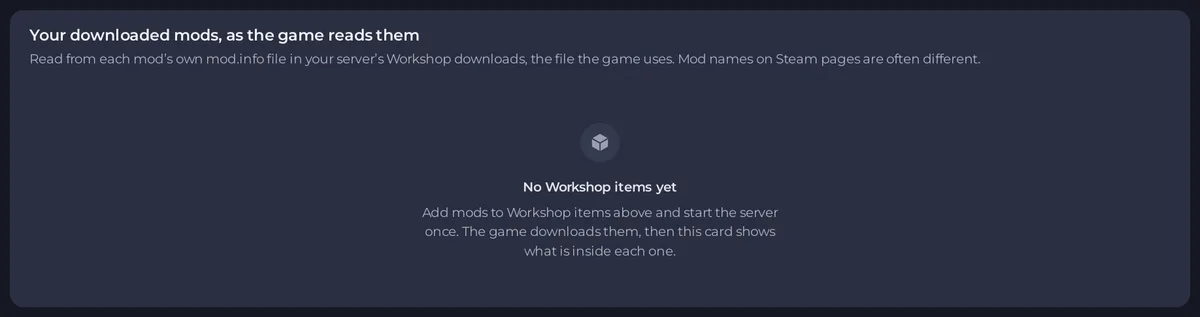
On the Workshop tab, the card Your downloaded mods, as the game reads them reads each mod's own mod.info file from your server's downloads, the file the game itself uses. It lists every mod ID, says which build each mod is for, and warns before a start when a mod will not load, a required mod is missing or the order is wrong. Each warning has one button that fixes it.
Open the card
- Open your server in the panel and click the Workshop tab.
- Scroll below Workshop items and Enabled mods. The card sits above the Restart when a mod updates switch.
- If it says No Workshop items yet, add mods first and start the server once: the game downloads them, then the card shows what is inside each one.
The card says Ready to load when it finds nothing to fix, or how many things need fixing.
The list of mods
Under Mods found, each mod shows its ID, its name, and badges:
- Enabled: the mod is in Enabled mods. Otherwise an Enable button adds it.
- Build 41 only or Build 42 only: the mod has files for that build only.
- Build 42: the mod's files work on Build 42.
- Map: the mod adds a map area.
- "Needs" and a version: the mod asks for a newer game than your server runs.
Search mods finds a mod by ID or name. Mod names on Steam pages are often different from the ID: use the ID shown here.
The warnings and their fixes
| Warning | What it means | Fix |
|---|---|---|
| These mods will not load on this game version | On Build 42, a mod that has only a Build 41 version. The game skips it and any mod that needs it | Remove from Enabled mods, or find a Build 42 version |
| A required mod is not enabled | An enabled mod needs another one that is downloaded but not enabled | Enable them in the right order |
| A required mod is not downloaded | An enabled mod needs a mod that is in none of your Workshop items | Find it on the Workshop and add it to Workshop items |
| Enabled, but in no downloaded item | An ID in Enabled mods that no download has. Often a typo | Check the spelling against the list, or Remove from Enabled mods |
| The load order does not follow the requirements | A mod loads before a library it needs | Sort by requirements: it keeps your order and only moves what must move |
| Mods that need each other | Mods that require each other, so no order satisfies all | Kept in your order. Ask the mod authors which comes first |
| Made for a newer game | The mod asks for a newer game version | It may fail until your server runs that version |
| Not downloaded yet | Items in your list the server has not downloaded | Start or restart the server |
| Map folders from your enabled mods | Mods that add map areas | Add the map folders: a map only appears once its folder is in Map folders |
Every change the card saves goes through the same save as the lists above, sorted by requirements, and applies at the next start. Click Restart to apply when you are ready.
The Mods= line
At the bottom, "Mods= for this server, in load order" shows the exact line, in the Build 42 form. The panel writes it into the server settings at every start from Enabled mods, so you do not need to copy it anywhere.
Good to know
- The card needs the permission to read file contents. Its buttons also need the permission to change settings.
- After a start, check what really loaded: How to check that your Project Zomboid mods loaded.
- Builds and mods: Project Zomboid mods and Build 42: what to know.





