%7B.s%7Banimation%3Ab%201.5s%20ease-out%20both%7D.d%7Banimation-delay%3A.16s%7D%7D%40keyframes%20b%7B0%25%7Bfill%3A%23F4F6FA%7D18%25%7Bfill%3A%23FFE08A%7D34%25%2C70%25%7Bfill%3A%23FF8A1F%7D80%25%7Bfill%3A%23FFE08A%7D100%25%7Bfill%3A%23FF8A1F%7D%7D%3C%2Fstyle%3E%3Cg%20transform%3D%22translate(143%20428.93)%20scale(3.885906)%22%3E%3Cg%20transform%3D%22translate(0%202)%22%20fill%3D%22%23706EF0%22%3E%3Cpath%20d%3D%22M0%200%20H48%20A40%2040%200%200%201%2048%2080%20V100%20H0%20Z%22%2F%3E%3Cpath%20transform%3D%22translate(91.75%200)%22%20d%3D%22M0%200%20L48%200%20L48%2050%20L76%2050%20L76%20100%20L0%20100%20Z%22%2F%3E%3Cpath%20transform%3D%22translate(173%200)%22%20d%3D%22M0%20100%20L58%20-4%20L116%20100%20Z%22%2F%3E%3Cpath%20transform%3D%22translate(264.25%200)%22%20d%3D%22M0%200%20L104%200%20L76%2050%20L76%20100%20L28%20100%20L28%2050%20Z%22%2F%3E%3Cg%20transform%3D%22translate(375%200)%22%3E%3Cpath%20d%3D%22M0%200%20L50%2038%20L50%200%20L100%200%20L100%20100%20L0%20100%20Z%22%20fill%3D%22%23F4F6FA%22%2F%3E%3Crect%20class%3D%22s%22%20x%3D%2247%22%20y%3D%2263%22%20width%3D%2219%22%20height%3D%2230%22%2F%3E%3Crect%20class%3D%22s%20d%22%20x%3D%2274%22%20y%3D%2263%22%20width%3D%2219%22%20height%3D%2230%22%2F%3E%3C%2Fg%3E%3Cpath%20transform%3D%22translate(484.75%200)%22%20d%3D%22M0%200%20L48%200%20L48%2037%20L52%2037%20L52%200%20L100%200%20L100%20100%20L52%20100%20L52%2063%20L48%2063%20L48%20100%20L0%20100%20Z%22%2F%3E%3Cpath%20transform%3D%22translate(588.5%200)%22%20d%3D%22M0%2050%20A53%2053%200%201%200%20106%2050%20A53%2053%200%201%200%200%2050%20Z%22%2F%3E%3Cpath%20transform%3D%22translate(698.25%200)%22%20d%3D%22M25%200%20H102%20V50%20H77%20A25%2025%200%200%201%2077%20100%20H0%20V50%20H25%20A25%2025%200%200%201%2025%200%20Z%22%2F%3E%3Cpath%20transform%3D%22translate(804%200)%22%20d%3D%22M0%200%20L90%200%20L90%2050%20L69%2050%20L69%20100%20L21%20100%20L21%2050%20L0%2050%20Z%22%2F%3E%3C%2Fg%3E%3C%2Fg%3E%3C%2Fsvg%3E)


You can show your Minecraft game chat in a Discord channel, and show messages from that channel in the game. The panel needs two things from you, a bot token and a channel ID, and does the rest: it installs the right bridge for your server and writes its settings.
The bridge is DiscordSRV on Paper, Purpur, Spigot and Folia, and Mc2Discord on Fabric, Quilt, Forge and NeoForge. Other server types (Vanilla, Sponge, proxies) are not offered.
Create the Discord bot
- Open the Discord Developer Portal, press New Application and give it a name.
- On the Bot page, under Privileged Gateway Intents, turn on Server Members Intent and Message Content Intent, then save.
- On the same page, press Reset Token and copy the token. You will paste it in the panel in a moment. Treat it like a password.
- In Discord, turn on Developer Mode (User Settings, Advanced), right-click the chat channel you want to use and choose Copy Channel ID.
Connect it in the panel
- Open your server in the panel and click Ports & Network in the left menu.
On the Add-ons card, find Discord chat and click Connect. The window Connect Discord chat opens, with the same steps listed at the top (you can hide them with Hide the steps).
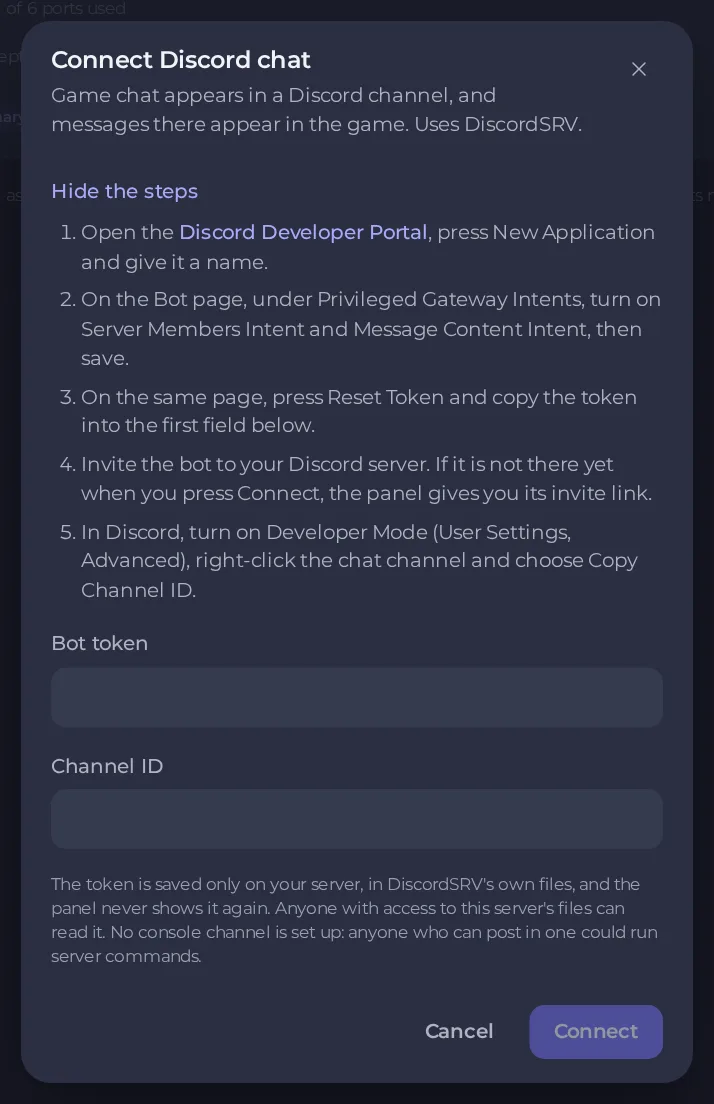
- Paste the Bot token and the Channel ID and connect.
- The panel checks them with Discord first. If the bot is not in your Discord server yet, it gives you an Invite the bot to your Discord server link. Open it, add the bot, and connect again.
- When it works, the row says that you are connected as the bot to the channel. If Discord could not be reached to check the token, the panel saves it and tells you that after the restart, the console shows whether it connected.
- The panel does not restart your server by itself. Use Restart now when it asks.
Game chat then appears in your Discord channel, and messages there appear in the game.
Keep the token safe
The token is saved only on your server, in the bridge's own files, and the panel never shows it again. Anyone with access to your server's files can read it, so give file access only to people you trust. If a token leaks, press Reset Token in the Developer Portal and connect again with the new one.
No console channel is set up. Anyone who can post in one could run server commands, so the panel never does this for you.
Change or disconnect
- Change lets you paste a new token or choose another channel. A token is saved on the server, so paste it again, or a new one, to connect.
- Disconnect disconnects the bridge and removes its token from the server.
If it does not connect
- Check that both intents are on and the token is the newest one.
- Check the Channel ID is the channel's, not the Discord server's.
- Open the Console after the restart for the bridge's own message.
See also How to install plugins on Paper, Spigot and Purpur and How to use the console and run commands.
Want to host a community server? See Minecraft server hosting.





