

Most of what you want to change on a Project Zomboid server is on one page of the panel.
Open Game Settings
- Open your server in the panel and click the Settings tab.
- Click Game Settings.
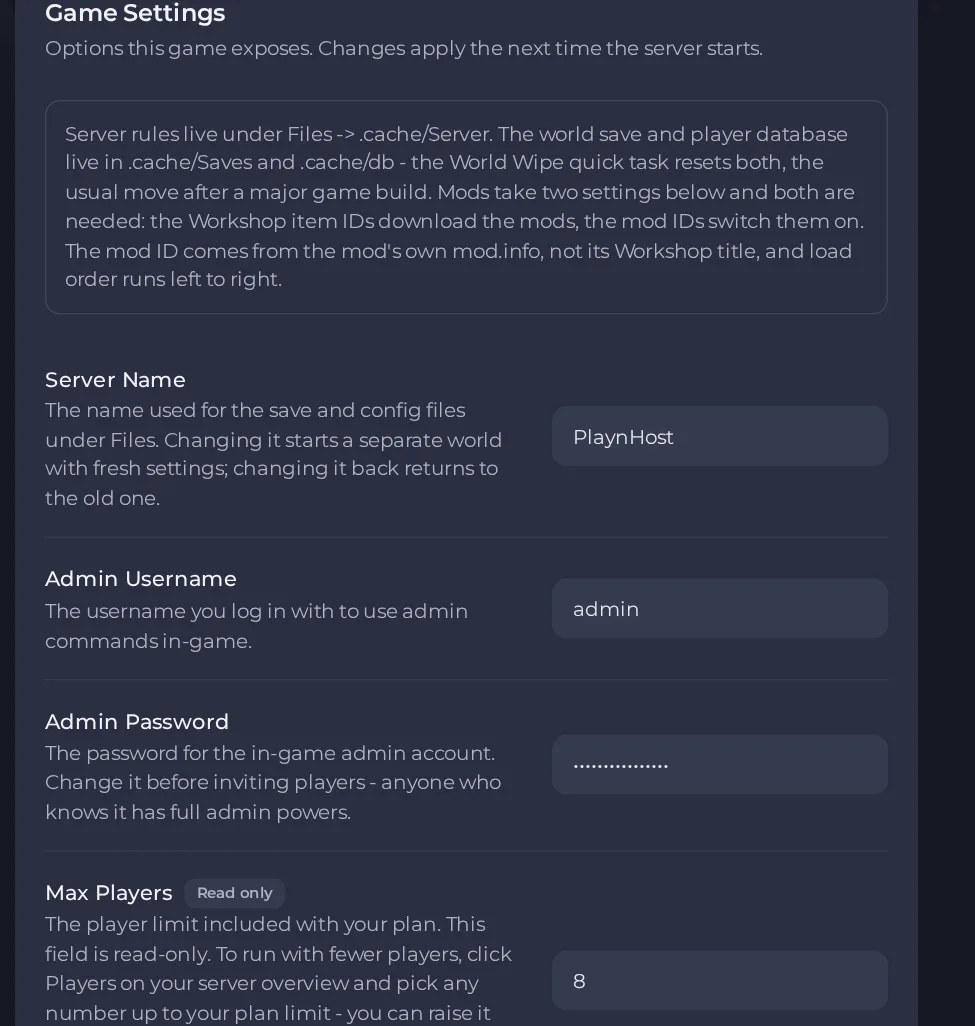
- Change a value and click outside the field, or press Enter. The panel saves it. Switches save as soon as you flip them.
- Restart the server so the change takes effect. See How to start, stop, restart and force-stop your server.
Options most owners change first
- Server Name. Names the save and config files; changing it starts a separate world with fresh settings, and changing it back returns to the old one. Letters and numbers only, up to 64 characters.
- Max Players. Read-only here and capped by your plan. To run with fewer, use Players on the server Overview page.
- PVP. true or false; lets players hurt and kill each other.
- Zombie Population. 1=Insane, 2=Very High, 3=High, 4=Normal, 5=Low, 6=None.
- Zombie Respawn. How often new zombies are added over time: 1=High, 2=Normal, 3=Low, 4=None.
- Loot Respawn (hours). After this many in-game hours, containers that were looted at least once restock. 0 means loot never respawns.
- Banned Item IDs. Comma-separated item type IDs that never spawn as loot, for example Base.Pistol,Base.Katana.
- Admin Username. The username you log in with in game to use admin commands. No spaces, quotes, backslashes, asterisks or question marks, up to 20 characters. Set it before the first start.
- Admin Password. 6 to 32 characters, no quotes or backslashes. Change the default before inviting players; anyone who knows it has full admin powers. Set it before the first start: changing it later may not change the existing admin account.
- RCON Password. 6 to 32 characters, no quotes or backslashes. Used by remote admin tools. Change the default if you share the server details.
- Steam Auto Update. Off by default. Turn it on to install new game builds at each start (a start after an update takes a few minutes longer). Leave it off to stay on your current build so your mods are not left behind by a game update.
- Beta Branch. Leave empty for the normal current version. A change only takes effect on a reinstall, so ask support to do it, after a backup.
Everything on the Settings, then Game Settings page is applied each time the server starts, so restart the server after changing one. Edit these there and not in the server files: the panel writes them again at every start and would overwrite a manual edit. The server password, spawn settings and other sandbox options have no panel field. To set those, stop the server, open Files, go into .cache, then Server, and edit <Server Name>.ini (server password and other server options) or <Server Name>_SandboxVars.lua (sandbox rules), then start the server.
Every option is listed in Project Zomboid server settings: every option explained.





