

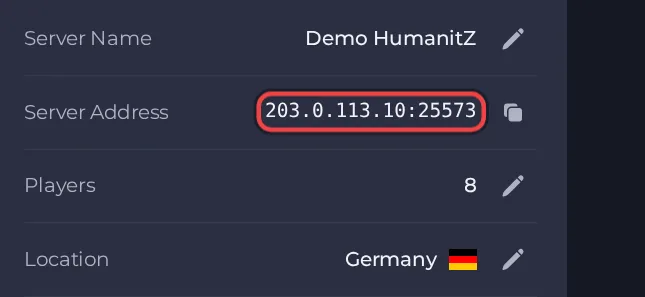
Your players join your HumanitZ server with its Server Address, shown on the server's Overview page in the panel. HumanitZ is a co-op, isometric open-world survival game set after a zombie outbreak; a hosted dedicated server keeps one shared world running around the clock so friends can join without anyone's PC being the host.
Join in a few steps
- Open your server in the panel. If the status badge says Offline, click Start and wait until it says Online. See How to start, stop, restart and force-stop your server.
- On the Overview page, click the copy icon next to Server Address. It looks like
address:port.
- Launch HumanitZ from Steam and wait for the main menu.
- Open the multiplayer server browser and search for your Server Name.
- If your game offers a way to connect by address, type the Server Address there (address and port together, in the form address:port) and connect.
- If you set a Server Password in the panel, enter it when the game asks for it.
- A freshly started server can take a few minutes to appear in the browser. If you do not see it yet, wait a little and search again.
Ports
Players use only the port shown in the Server Address on the Overview page. The second port the server uses is for server listing only, and players never type it.
Game version
Players should run the current version of HumanitZ. Auto Update is on by default and checks for a game update every time the server starts, so restart the server after a game patch. Turn Auto Update off only if you need to stay on a specific build.
If you cannot join
- The server must be Online. Check the badge at the top of the page.
- Copy the address again from the panel. A missing or mistyped port is the most common cause.
- Make sure every player runs a compatible game version.
- Check the password, if you set one. See How to set up your HumanitZ server.
- More checks: How to join your server and HumanitZ server problems and fixes.





