

Most of what you want to change on a Don't Starve Together server is on one page of the panel.
Open Game Settings
- Open your server in the panel and click the Settings tab.
- Click Game Settings.
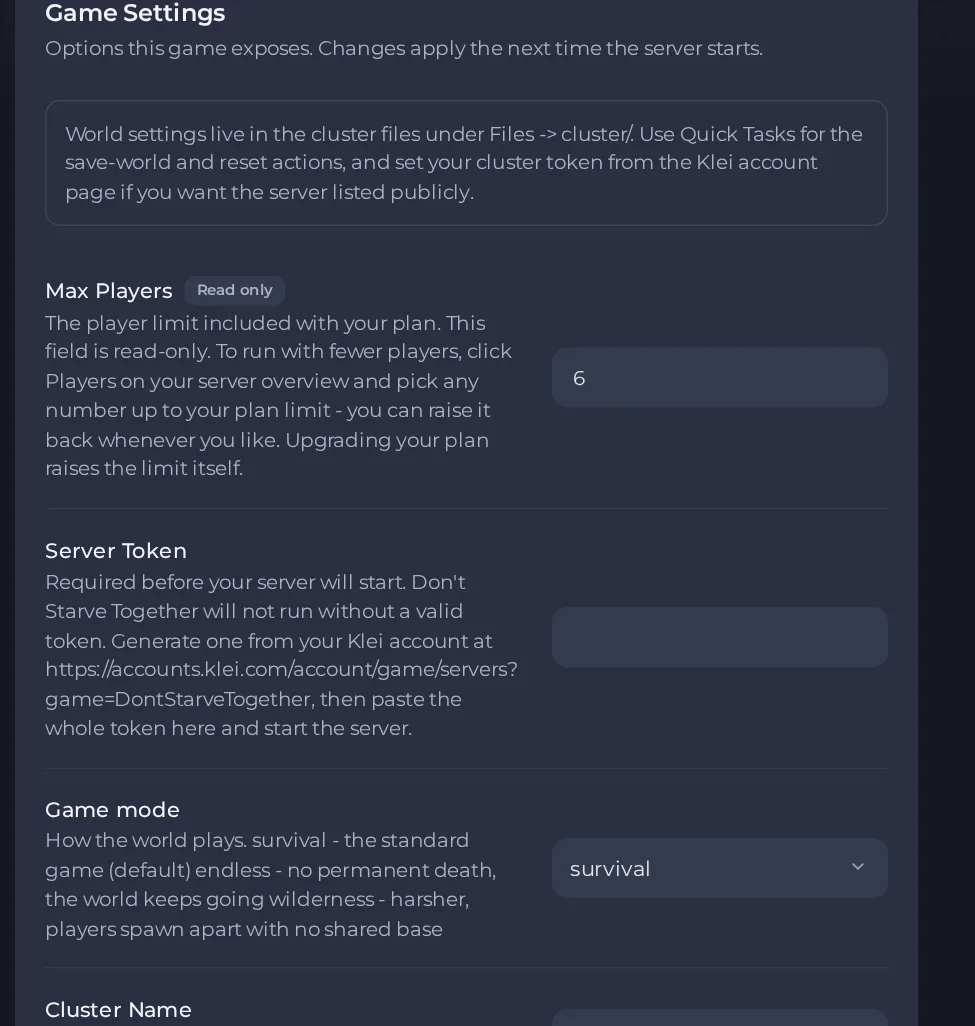
- Change a value and click outside the field, or press Enter. The panel saves it. Switches save as soon as you flip them.
- Restart the server so the change takes effect. See How to start, stop, restart and force-stop your server.
Options most owners change first
- Server Token. Required before your server will start. Create a free token in your Klei account at https://accounts.klei.com/account/game/servers?game=DontStarveTogether (choose Don't Starve Together), then paste the whole token into this setting and start the server. If the Console message tells you to paste the token into "Cluster Token" and shows a link, ignore both: the box to use is this Server Token box under Settings, then Game Settings. The token links the server to your Klei account, so keep it private and never share a backup or a screenshot that shows it.
- Cluster Name. The name of your server in the in-game server list. Players search for it in Browse Games.
- Cluster Description. The description shown under your server's name on the Browse Games screen.
- Game mode. Survival is the standard game and is the default. Endless means no permanent death and the world keeps going. Wilderness is harsher, with players spawning apart and no shared base. Pick it before you start a new world.
- Max Players. Read-only and set to the limit included with your plan. To run with fewer players, click Players on your server Overview page and pick a number up to your plan limit; upgrading your plan raises the limit itself.
- Auto-update server. When on, the server checks for a game update every time it starts. It is off by default for new servers, so switch it on if you want updates.
- Steam Workshop Mods. The Steam Workshop mod numbers to load, separated by commas. The surface world and the caves world use the same list, and emptying it puts the server back to unmodded.
- Server password (config file). There is no password box in the panel. To protect the server, stop it, open cluster.ini in Files under DoNotStarveTogether, then config, then server, find the cluster_password line in the NETWORK section and type the password after the equals sign. Start the server again and players are asked for it when they join.
- Pause when empty (config file). The pause_when_empty line in cluster.ini controls whether the world stands still while nobody is online. Set it to true or false while the server is stopped.
Cluster Name, Cluster Description, Game mode and Max Players are written into the server's cluster.ini file every time the server starts, so change them in Settings, then Game Settings, and restart. A value you type over them in the file is replaced at the next start. Other cluster.ini lines, such as the password and pause_when_empty, are yours to edit while the server is stopped.
Every option is listed in Don't Starve Together server settings: every option explained.





