

Most of what you want to change on an Arma 3 server is on one page of the panel.
Open Game Settings
- Open your server in the panel and click the Settings tab.
- Click Game Settings.
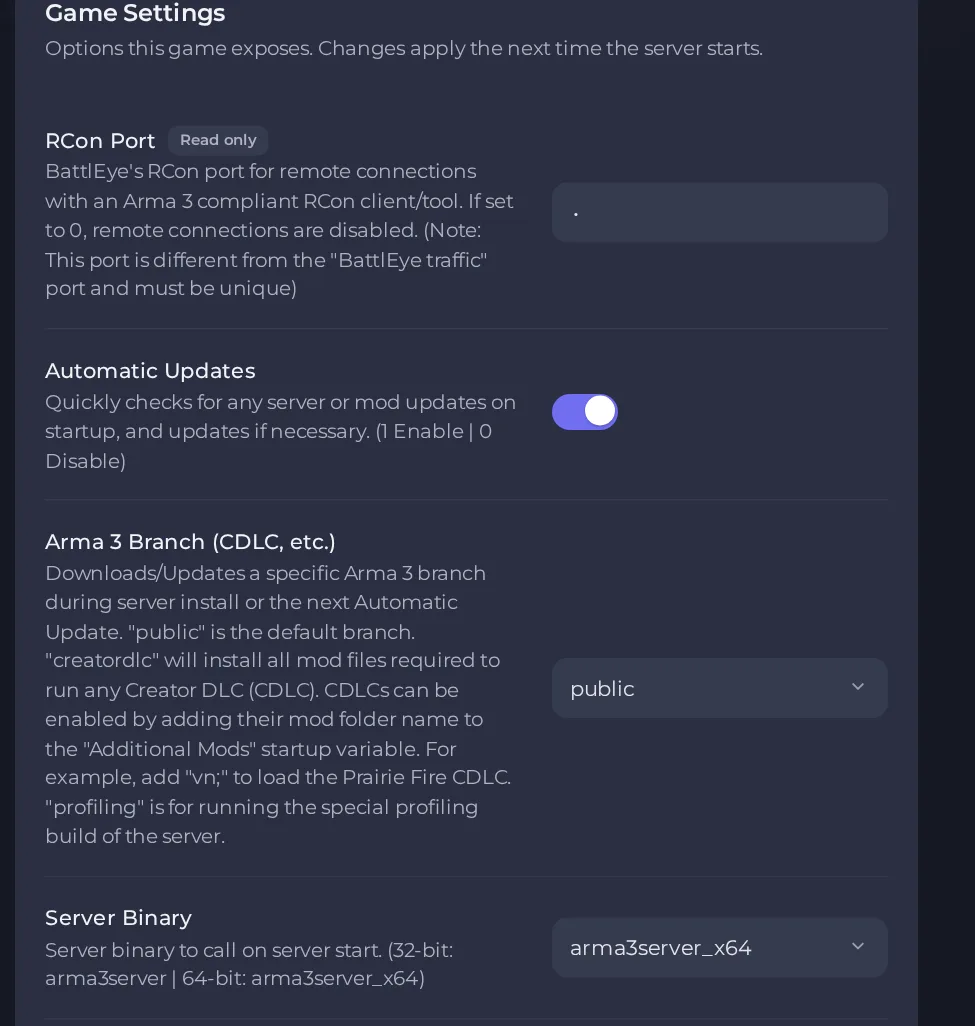
- Change a value and click outside the field, or press Enter. The panel saves it. Switches save as soon as you flip them.
- Restart the server so the change takes effect. See How to start, stop, restart and force-stop your server.
Options most owners change first
- Server Password. Players need it to join. Leave it blank for no password. Do not use a double quote in the password, because the server writes it into server.cfg on every start and a quote would break that file.
- Max Players. Shown for information and set by your plan, so it cannot be edited. The final number is the lower of this value and the mission's player slots.
- Automatic Updates. When ON, the server is checked for updates at every start. Workshop mods listed by ID are also checked, but their automatic download is not guaranteed, so check their @ folders in Files.
- Arma 3 Branch (CDLC, etc.). Choose public (default), creatordlc (needed to run Creator DLCs) or profiling (special performance build, advanced users). It applies on the next update at startup.
- Server Binary. 64-bit server by default. A 32-bit option exists, and the profiling builds need the matching profiling binary.
- Server FPS. Maximum simulation cycles per second, default 50. Higher values cost more CPU and the benefit depends on the mission.
- Headless Clients (HC). 0 to 5 extra processes that take over AI work. Only useful with a mission written for headless clients, and each one adds load and memory use.
- Load Mission To Memory. ON by default. Keeps the processed mission in memory after the first download to save server CPU for later joiners.
- Auto Initialize Mission. Starts the mission by itself like the first player would. It only works if server.cfg has persistent set to 1, otherwise it is skipped.
- Enable File Patching. Lets the game load unpacked data. OFF by default and only needed for some development setups.
- Disable Verbose Logging. ON by default to cut console noise. While it is on, no .rpt log files are written, so turn it OFF when you need those logs to diagnose a problem.
- RCon Password. Has no effect on our servers, because remote console access is not available on them. Leave it empty.
- Make Mod Files Lowercase. Turn ON for one start after uploading mods made on Windows, or if mods will not load.
- Validate Server Files. Re-checks every game file when Automatic Updates is ON. It slows startup a lot, so enable it only when needed.
- Modlist File (Exported from A3 Launcher). Name of the HTML preset exported from the Arma 3 Launcher, for example modlist.html, that you upload to the server's main folder. Clear it to stop reading a preset.
- Additional Mods. Semicolon-separated mod folders to load, also used for Creator DLC folders such as vn;.
- Server-Side Only Mods. Mod folders that run only on the server and that players do not need.
- Optional Client-Side Mods. Workshop mods players may use but are not required to. Their keys are accepted, but the mod is not forced on players.
Changes in Settings, then Game Settings, apply the next time the server starts. The server name (hostname), admin password, mission list, persistent and other rules live in server.cfg in the server's main folder (the top level of Files) and also apply after a restart. The server rewrites the password and player limit lines of server.cfg from the panel values at every start, so change those two in Settings, not in the file.
Every option is listed in Arma 3 server settings: every option explained.





